Why Your Mac Doesn't Remember Window Positions (and How to Fix It)
Windows jumping to the wrong monitor, layouts lost after sleep or restart — macOS window amnesia is a real, documented problem. Here's what causes it and every fix, from display settings to full workspace restore.
You wake your Mac from sleep. The browser that was on the left monitor is now stacked on the right. The terminal you had pinned to a corner is somewhere else entirely. You plug in the external display and every window shuffles to your laptop screen. You restart for a software update and come back to a blank desktop.
This isn't a quirk — it's a structural limitation of how macOS tracks window state. This guide explains exactly why it happens and covers every fix available, from the free system settings adjustments to a tool that actually solves the problem permanently.
TL;DR
ShiftPlus does what macOS won't: it saves your exact window layout — positions, apps, Spaces, and browser profiles — as a named workspace you can restore with a single hotkey, even after sleep, restart, or a monitor swap.
The symptom
You've probably hit one or more of these:
- After sleep/wake: windows that were on your external monitor pile up on the laptop screen, or appear in the wrong positions on the right display.
- After docking or undocking: plugging in a second monitor doesn't restore windows to where they were the last time that display was connected.
- After a restart: all windows are gone, or apps reopen in the wrong layout with no Space assignments.
- After a macOS update: the overnight reboot that installs the update wipes your entire working setup.
- Randomly during a session: Stage Manager or "Automatically rearrange Spaces" quietly reshuffles windows you didn't move.
The frustrating part is that macOS seems like it should remember. You've been using the same desk, the same monitor, the same apps for months. Why doesn't the system just keep track?
Why it happens
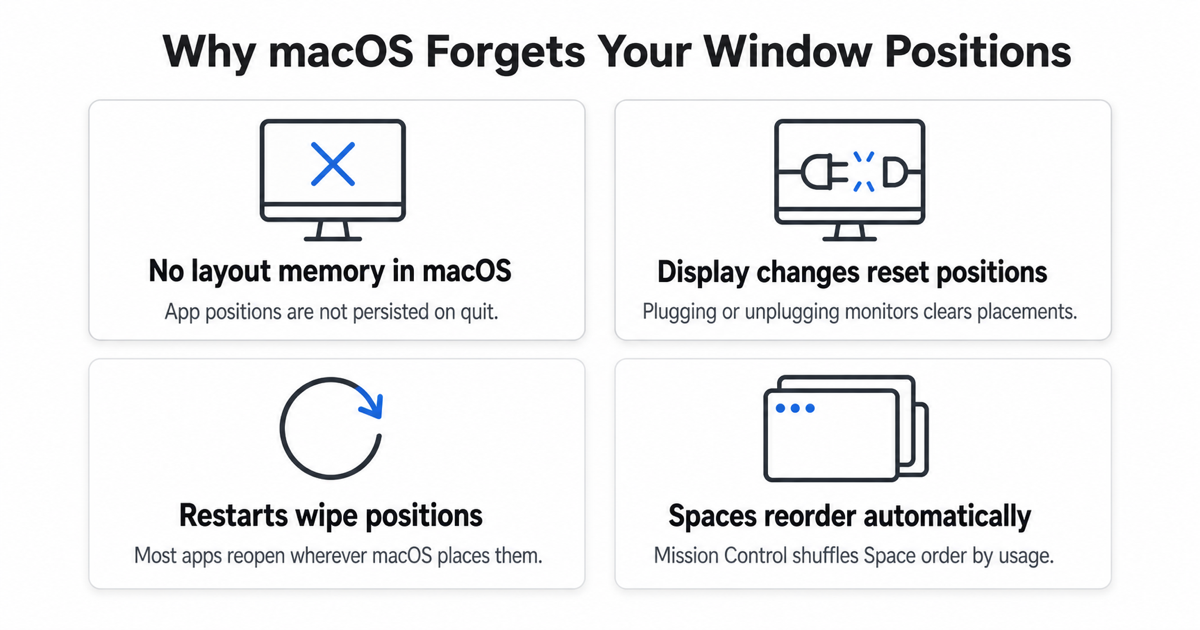
This is the section worth understanding, because knowing the cause points directly to which fixes actually work.
1. Display identification is unreliable
macOS identifies each connected monitor using a display UUID derived from the monitor's EDID data (the metadata block the display reports over the cable). When macOS saves a window's position, it tags that position with the UUID of the display the window was on.
The problem: that UUID is not guaranteed to be stable. It can change when you:
- Reconnect via a different cable, port, or adapter
- Use a USB-C hub or Thunderbolt dock (the dock's firmware reports intermediate EDID data)
- Upgrade macOS (which sometimes changes how UUIDs are computed)
- Plug in a second monitor after sleep in a different order than last time
When the UUID changes, macOS can't match the saved position to a known display. It falls back to placing the window wherever it fits — usually the primary display — and your layout collapses.
2. Apps manage their own window state
macOS gives each app a framework called NSWindowRestoration. Apps opt in by setting a frameAutosaveName on each window, which writes the frame to a preferences file in the user library. On next launch, the app reads that saved frame and restores the window.
This works only if the app bothers to implement it. Many don't, or do so inconsistently:
- Terminal apps often restore the window size but open in the home directory, not where you were.
- Electron apps (VS Code, Slack, etc.) implement their own position saving with inconsistent results across updates.
- Most apps that haven't been updated in a few years ignore
NSWindowRestorationentirely.
Even when apps do save their state, they save it against the last display UUID they saw. If that UUID changed, the restore lands in the wrong place.
3. Spaces reshuffling
macOS has a hidden trap in System Settings → Desktop & Dock: "Automatically rearrange Spaces based on most recent use." With this on (the default), macOS reorders your virtual desktops by which you've used most recently. An app you pinned to Space 3 last week may have drifted to Space 5 this week — and every window in that Space moved with it.
This option has existed since Mission Control launched. It's the single most common reason experienced Mac users find their layouts scrambled after a few days of normal use.
4. Sleep/wake display re-negotiation
When your Mac wakes from sleep, it re-negotiates the connection to each display. Depending on the hardware and the sleep depth, the display may briefly drop off the bus and reappear. If the window server sees the display disappear and reappear, it can treat the reconnect as a new display event — triggering the same fallback behavior as an actual unplug/replug. The result: windows move to the internal display, just like they would if you'd unplugged the monitor and plugged it back in.
This is especially common with non-Apple monitors connected via adapters or older Thunderbolt docks.
Fixes to try first
These are free, built-in, and worth trying. They solve part of the problem for most users, but have real limits.
Turn off "Automatically rearrange Spaces"
Go to System Settings → Desktop & Dock → Mission Control → uncheck "Automatically rearrange Spaces based on most recent use." This stops macOS from shuffling your virtual desktops. It doesn't fix display UUID issues, but it eliminates the most common cause of unexplained rearrangement.
Use the same physical cable and port
If your UUID instability is caused by switching adapters or ports, committing to a single cable path on the same Thunderbolt port eliminates most of the variation. Expensive and inconvenient, but effective for desk-only setups.
Enable "Reopen windows when logging back in"
This checkbox appears when you restart or log out. It asks macOS to relaunch the apps that were open. It doesn't restore positions reliably — especially Space assignments — but it reduces the blank-desktop problem after a forced reboot. See our detailed breakdown of what this setting actually does and where it breaks.
Check per-app settings
Some apps have their own window-position memory. VS Code, for example, saves its own window layout. Check the app's preferences for any "restore windows" or "remember layout" options before assuming it's a macOS problem.
Disable Stage Manager
Stage Manager (System Settings → Desktop & Dock → Stage Manager) uses a completely different window-grouping model that conflicts with Space assignments and conventional window layout tools. If you're using Spaces-based workflows and see random rearrangement, turning Stage Manager off is often the fix.
The honest limit of all of these: they reduce how often the problem occurs, but they don't give you a way to restore a specific layout. After a restart, after a macOS update, after a crash — your layout is gone and you rebuild manually.
The permanent fix: save the layout yourself
The underlying problem is that macOS treats window positions as ephemeral session state. The fix is to treat them as explicit, saved data — a workspace snapshot you control.
ShiftPlus is a native macOS workspace manager that captures your layout and restores it on demand. You arrange your windows once, capture the workspace, and then restore it with a hotkey any time — after sleep, after restart, after any monitor change.
What a ShiftPlus snapshot includes:
- Window positions and arrangements stored as logical positions (Left Half, Right Half, Fullscreen, Centered), not raw pixel coordinates — so the layout survives between different screen sizes and display configurations.
- App state — which apps are open, which project they're in, what file or URL they have loaded.
- Browser profiles — Chrome with your work Google account, Safari with personal tabs, each restored to the right profile automatically.
- Spaces assignments — each app pinned to a specific virtual desktop, rebuilt in order when you open the workspace.
- Multi-Mac sync — the same workspace profile synced to all your Macs via iCloud. Each Mac recomputes the pixel positions for its own screen.
The key insight is that ShiftPlus stores intent, not coordinates. A layout saved on a 4K external monitor restores sensibly on a 13-inch MacBook screen — because the arrangement (Left Half / Right Half) travels, not the raw pixels.
To set up a workspace:
- Arrange your apps and windows the way you want them.
- Open ShiftPlus → Capture current setup → name it (e.g. "Work" or "Writing").
- Optionally assign each app to a specific Space, and pick logical window arrangements.
- Set a hotkey for the workspace.
After that, restoring after sleep takes one keypress. Restoring after a restart takes the same keypress. The monitor unplug problem is also solved: the layout doesn't depend on display UUIDs at all.
For more, see our guides on how to save and restore your window layout on Mac and how to restore your macOS workspace automatically.
Comparison: which fix handles which scenario
| Fix | Works after sleep | Works after restart | Works after monitor swap | Effort |
|---|---|---|---|---|
| Turn off "Auto-rearrange Spaces" | Partial | Partial | No | Low |
| Same cable/port discipline | Partial | No | Partial | Medium |
| "Reopen windows when logging back in" | No | Partial | No | Low |
| Per-app window memory | Varies | Varies | Varies | Low |
| Disable Stage Manager | Partial | No | No | Low |
| ShiftPlus workspace snapshots | Yes | Yes | Yes | Low (one-time setup) |
FAQ
Why do my Mac windows move to the wrong monitor?
macOS tags each window's saved position with a display UUID. When you reconnect a monitor — especially via a hub, adapter, or different port — the UUID can change, and macOS can't match the saved position to the new UUID. It falls back to placing windows on the primary display. This is the most common cause of "windows jumped to my laptop screen" after plugging in a monitor. The fix is to either standardize your connection path to stabilize the UUID, or use a layout tool like ShiftPlus that stores logical arrangements instead of raw coordinates.
Does macOS have a setting to remember window positions?
Not reliably. "Reopen windows when logging back in" can relaunch apps after a restart, but it doesn't consistently restore window positions, sizes, or which Space each app is on. Per-app window memory (NSWindowRestoration) exists but is opt-in per developer and inconsistent in practice. There is no system-wide "remember and restore exact layout" setting in macOS. For a full restore, you need a third-party tool.
Why do windows rearrange when I unplug my external display?
When you unplug a monitor, macOS moves all windows from that display to the remaining display. When you plug it back in, macOS doesn't automatically move those windows back — it would need to remember where they were on that specific display, keyed to a stable identifier. If the display UUID is stable, some apps may restore correctly. If not (common with USB-C adapters and docks), windows stay on the internal screen. ShiftPlus solves this by letting you trigger a workspace restore after plugging in, which moves everything back to where you want it.
How do I restore my window layout after a restart?
The reliable method: capture your layout with a workspace tool before you restart, then restore it afterward. ShiftPlus lets you do this: save a named workspace, then after the restart open that workspace with a hotkey and all your apps, windows, and Spaces rebuild automatically. The native macOS option ("Reopen windows when logging back in") is unreliable — it may reopen some apps but almost certainly not in the right positions on the right Spaces. See our full guide on reopening apps and windows after a Mac restart for a detailed comparison.
Stop fighting macOS window amnesia
The window-position problem isn't going to be fixed by Apple any time soon — it's a structural issue that goes back to how macOS designed display identification and app state restoration. The system was built for a world of single displays and identical restarts, not Thunderbolt docks, multiple Macs, and four virtual desktops.
The practical path forward is to stop depending on macOS to remember your layout and start saving it yourself. One capture in ShiftPlus, one hotkey on restore — and sleep, restart, and monitor swaps stop being a ten-minute rebuild.
Download ShiftPlus and try it free for 14 days — capture your layout once, restore it any time.