How to Manage Multiple Chrome Profiles on macOS (The Complete Guide)
Are you juggling multiple logins? Learn how Chrome profiles work, the pain points of manual switching on macOS, and the ultimate way to automate link routing using ShiftPlus.
If you're juggling work, personal life, side projects, or client accounts, your Google Chrome browser can get messy fast.
You end up switching accounts constantly, mixing bookmarks, and even leaking session cookies across profiles—it's an easy way to make mistakes, waste time, and compromise privacy.
The good news: Chrome supports multiple profiles, and macOS has powerful tools to make switching between them truly seamless. The secret is knowing how to automate the context switch.
This definitive guide, written by a productivity expert, will show you:
- How Chrome profiles actually work to keep your digital life separate.
- The exact steps to create & manage multiple profiles.
- How to solve the biggest pain point: opening links with the correct profile automatically.
- How to separate "work" vs. "personal" browsing without confusion.
- How to automate all of this using ShiftPlus for instant context switching.
Let's get your digital house in order.
What Are Chrome Profiles?
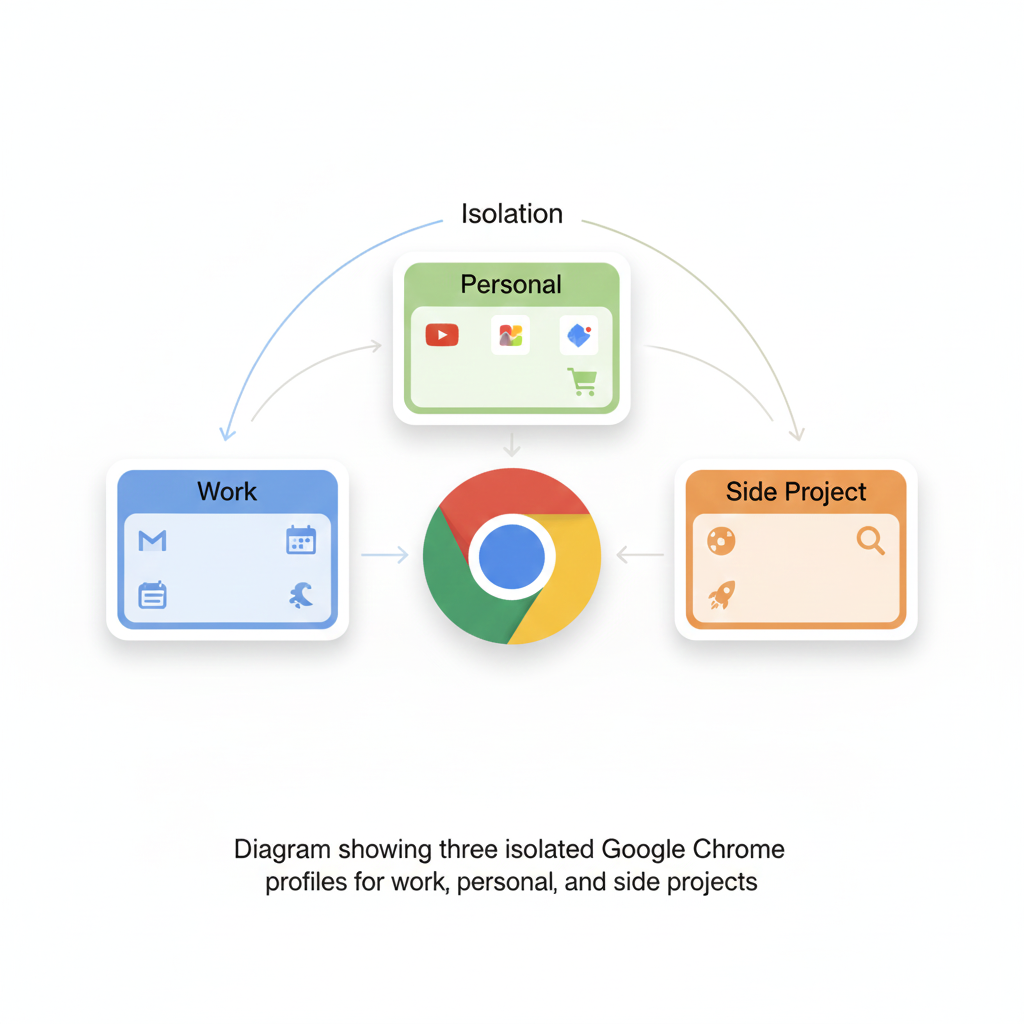
Chrome profiles are fundamentally isolated browser environments. Think of each profile as a completely separate version of Chrome running on your machine.
Each profile has its own siloed:
- Google Login & Identity
- Installed Extensions
- Browsing History & Cache
- Bookmarks and Reading List
- Cookies & Session Data
This critical isolation prevents "cross-contamination," meaning your work login cannot interfere with your personal login, and vice versa. It's the essential foundation for better privacy and focus.
Why You Need Multiple Profiles
Using profiles lets you safely separate:
| Profile Separation | Example Scenario |
|---|---|
| Work Email & Personal Email | No accidental replies from the wrong account. |
| Client Accounts | Manage 3 different client Slack/Jira/Google accounts without logging out. |
| Development | Separate your personal GitHub from your company's GitHub login. |
| Privacy & Security | Keep high-security sites (banking) separate from general browsing. |
How to Create a New Chrome Profile
Creating a new profile is quick and painless. You should repeat this for every major context switch in your life (e.g., Work, Personal, Freelance Client A).
Step-by-Step Guide
- Open Chrome: Launch your Google Chrome browser.
- Click Your Profile Icon: Look for your current profile picture or initial in the top-right corner.
- Select
Add: This option begins the setup for a new, isolated profile. - Name & Customize: Choose a clear name (e.g., "Work," "Client X," "Personal") and pick a color or theme.
- Sign In: Sign in with the appropriate Google account (optional, but highly recommended).
🧑💻 Pro Tip: Use Emoji for Clarity
For an instant visual cue when switching or reviewing windows, use emoji in your profile names:
- 🧑💼 Work: For immediate recognition of your professional profile.
- 🏠 Personal: The default, casual browsing environment.
- 🚀 Side Project: A dedicated space for focused development or research.
- 💼 Client A: Clear separation for client-specific tasks.
The Flaw: How to Switch Between Profiles (And Why It Fails)
The manual way to switch profiles is simple:
- Click your Google profile photo in the browser.
- Choose the profile you want from the dropdown list.
While functional, this method quickly becomes slow and inefficient when you have more than 3 profiles.
More importantly, it doesn't solve the biggest workflow problem:
Links from email, Slack, Notion, or other apps almost always open in the wrong, default Chrome profile, forcing you to manually copy, switch, and paste.
This manual step breaks your focus and wastes valuable time every single day.
How to Open Links in the Correct Chrome Profile (Automatically)
This is the real point of friction for power users and remote professionals on macOS. The goal is to eliminate that manual copy-and-paste ritual.
Option 1: Use Simple Link-Routing Tools (Manual Selection)
Free tools like Velja or Browserosaurus intercept every link click and prompt you to choose which browser or profile to use.
| Pros | Cons |
|---|---|
| ✅ Free & Lightweight | ❌ Still requires manual selection every single time. |
| ✅ Good for basic link routing | ❌ No automation or workspace management. |
This is a step up from manual switching, but it replaces one click with two. It's not true automation.
Option 2: Use ShiftPlus for Automatic Profile Switching (The Expert Solution)
ShiftPlus is purpose-built for context switching on macOS, making it the only tool that truly removes 100% of the cognitive overhead associated with profile management.
ShiftPlus lets you define simple, powerful rules that execute instantly:
- URL-Based Rule: If the link contains
slack.comorjira.com$\rightarrow$ open in the Work profile. - Domain-Based Rule: If the link contains
client-a-portal.com$\rightarrow$ open in the Client A profile. - Source-Based Rule: If the link is clicked from your personal email client $\rightarrow$ open in the Personal profile.
By automating this link routing, you never have to think about which profile a link will open in—it just works. You click, and you land in the correct context, ready to work.
A Simple Setup: Separating Work & Personal Browsing on macOS
As an expert, I recommend establishing three core profile structures. This setup is popular among developers, freelancers, and remote workers:
1. 🧑💼 Work Profile
This profile is a fortress for your professional life.
- Logins: Work Gmail, Company GitHub, Work-specific Slack, Work Notion/Jira/Confluence.
- Extensions: Password Manager, Grammarly, Time Tracker, Company VPN tool.
- Goal: Zero distractions, maximum security.
2. 🏠 Personal Profile
Your "default" internet environment, free of corporate accounts.
- Logins: Personal Gmail, YouTube, Facebook, Shopping sites.
- Extensions: Ad Blockers, Shopping tools.
- Goal: Relaxation and private browsing.
3. 🚀 Side Project/Client Profile (As Needed)
A temporary or dedicated space for focused tasks.
- Logins: Separate GitHub, specific client logins, dev tools.
- Extensions: Web developer tools, JSON formatters.
- Goal: Project isolation and focused task management.
This structure keeps you focused and prevents that accidental moment of opening YouTube in your work profile.
Bonus: Restore Full macOS Workspaces with One Click
Browser profiles are only half the solution for high-level context switching.
If you're constantly switching between Work, Personal, and Freelancing, you don't just need the correct Chrome profile; you need your entire operating system state to switch, too.
You also need your:
- Windows and running apps (e.g., IDE, Slack, Terminal).
- Monitor layouts and positions (e.g., Slack on the left, code on the right).
- The correct browser profile already open.
That's where ShiftPlus Workspace Capture comes in as the ultimate productivity hack.
With one click, your entire Workspace is saved and instantly restored:
- The correct Chrome Profile opens (e.g., Work).
- All Apps (e.g., VS Code, Slack) launch.
- Window Sizes and Positions are restored perfectly across all monitors.
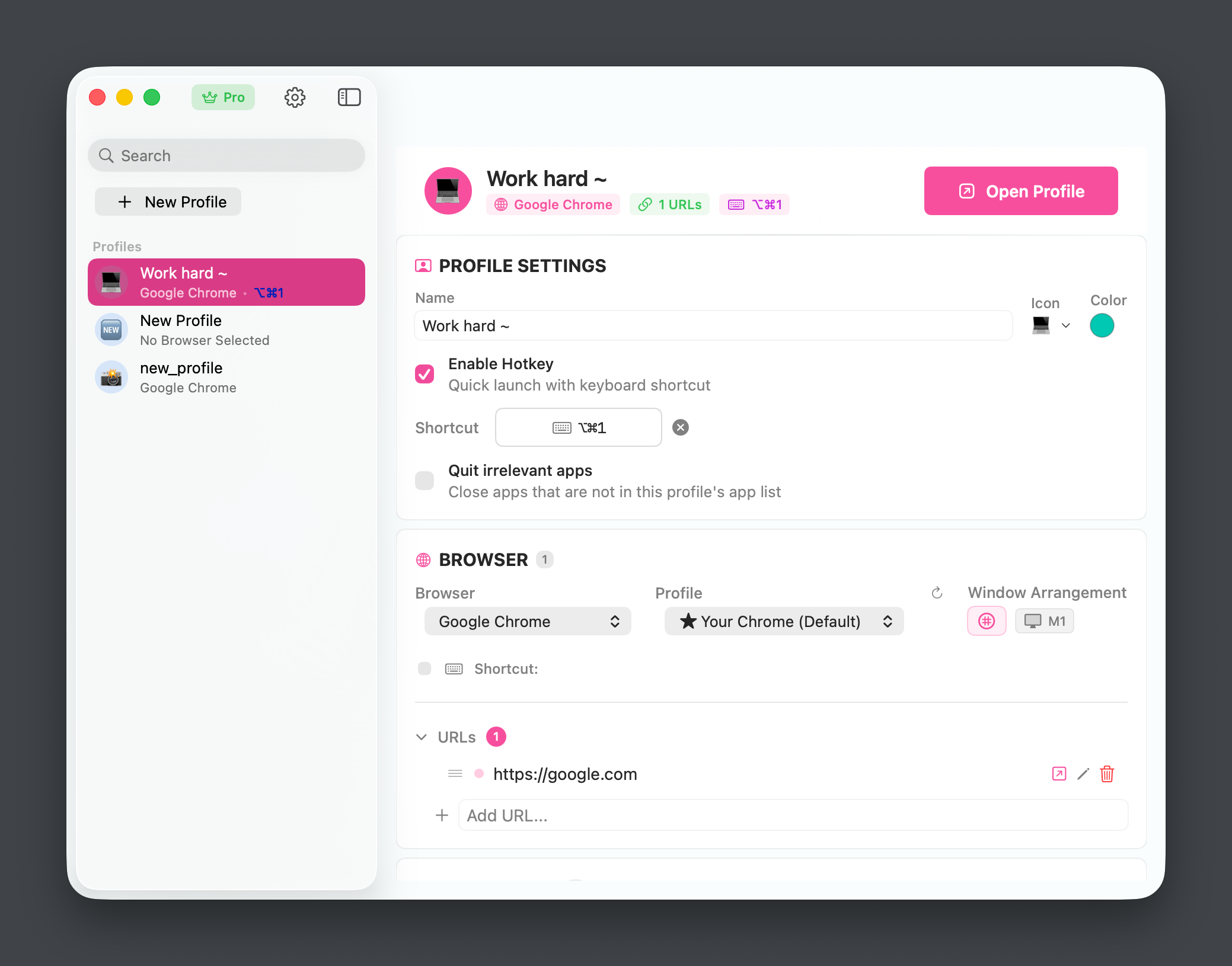
This is the fastest way for developers and founders to switch projects multiple times a day without losing five minutes to window reorganization every time.
Use Cases for Multiple Chrome Profiles
| User Segment | Pain Point Solved | The ShiftPlus Advantage |
|---|---|---|
| 1. Developers | Juggling work GitHub, personal code, and client repos. | Instant switching between Dev, Work, and Personal workspaces. |
| 2. Freelancers | Managing 3–10 client logins (Slack, Jira, Google Analytics) without conflicts. | Rule-based routing ensures client links always open in the correct client profile. |
| 3. Founders | Juggling marketing, product, finance, and support for multiple products. | Each product gets its own dedicated Chrome Profile and App Workspace. |
| 4. Social Media Managers | Logging in and out of different brand accounts daily. | Clean separation for each brand's sessions and extensions. |
Final Tips for a Clean Chrome Profile Setup
To solidify your new, clean workflow, keep these expert tips in mind:
- Avoid Mixed Logins: Never log into both a work and a personal Google account within the same profile.
- Name Clearly: Use descriptive names and emojis (e.g., 🧑💼 Work).
- Use a Default Profile: Designate a Personal or General Browsing profile as your system-wide default.
- Automate Link Routing: This is non-negotiable for high productivity. Use ShiftPlus to ensure links always open where they should.
Wrapping Up
Managing multiple Chrome profiles on macOS doesn't have to be a painful, manual process. It should be a foundation for better focus.
With the right setup, you can:
- Stay laser-focused on the task at hand.
- Protect your privacy and keep sessions clean.
- Avoid costly mistakes like posting from the wrong account.
- Switch contexts instantly.
If you want the ultimate solution—where your profiles, apps, windows, monitors, and layouts are all restored with one click—ShiftPlus makes that sophisticated context switching simple and automatic.
CTA: Ready to stop shuffling windows and profiles? Download ShiftPlus and try it free today and master your macOS workflow.