How to Reopen Your Apps and Windows After a Mac Restart
macOS 'Reopen windows when logging back in' is unreliable — it loses your layout, your Spaces, and your project state. Here's why it happens and how to bring your entire setup back in one click after any restart.
To reopen apps and windows after a Mac restart reliably, do not depend only on macOS's "Reopen windows when logging back in" checkbox. Save the workspace explicitly — apps, project paths, browser profiles, terminal environment, window layout, and Spaces — so the full setup can be rebuilt from a cold start.
You step away, macOS installs an update overnight, and your Mac restarts. You sit back down to a bare desktop: no editor, no terminal, no Slack, none of the windows where you left them. The "quick" software update just cost you ten minutes of rebuilding your setup.
macOS has a setting that's supposed to prevent this — "Reopen windows when logging back in" — but anyone who relies on it knows how often it disappoints. This guide explains why the native option falls short and how to reopen your entire workspace, reliably, after any restart.
TL;DR
- "Reopen windows when logging back in" is inconsistent. It frequently forgets which apps were running, drops window positions, and doesn't restore which Space each window was on.
- What you actually lose: Spaces, layout, and project state. Space assignments don't survive a restart; a code editor may reopen with no project, a terminal in your home directory — each app restores differently, or not at all.
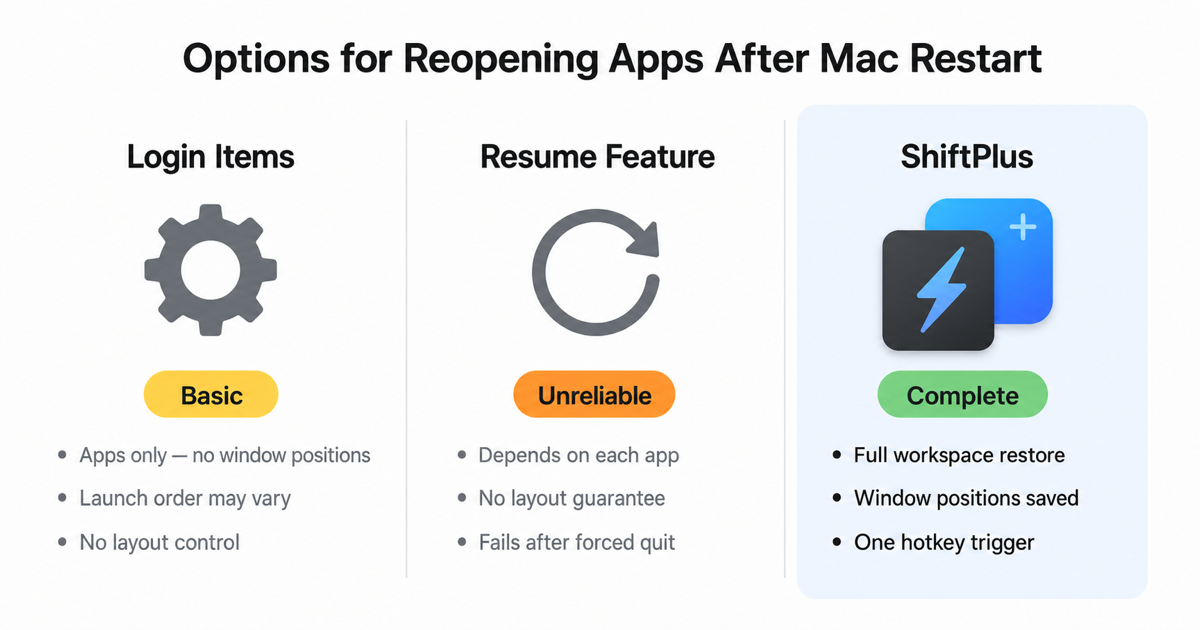
- The manual workarounds each restore a fragment. Login Items launch apps blank with no project or layout. Per-app state restoration varies wildly. None saves a complete snapshot you can rebuild from.
- ShiftPlus stores your workspace as explicit intent, not session memory. After any restart, one trigger rebuilds the right apps, project paths, browser profiles, window layout, and Spaces — without anything needing to have stayed running.
Why doesn't my Mac reopen my apps and windows after a restart?
macOS does have a built-in mechanism, but it's shallow and inconsistent. There are two separate things at play, and neither is dependable:
- "Reopen windows when logging back in" — the checkbox in the restart/shutdown dialog (and the related Login Items behavior). It tries to relaunch apps that were open, but it frequently forgets which apps were running, drops window positions, and doesn't restore which Space each window was on.
- Per-app state restoration — each app decides for itself whether to reopen its documents. Some do (Preview, TextEdit); many don't, or only partially. A code editor might reopen with no project, iTerm2 in your home directory with its tabs and splits gone, or Chrome with the wrong profile and none of its windows restored.
Worse, a lot of people turn the setting off on purpose, because when it works it reopens everything — including the random windows you didn't want — in a jumbled layout. So you're stuck choosing between "nothing comes back" and "everything comes back, messily."
The root problem — and the core reason behind macOS forgetting window positions even with the setting enabled — is that macOS treats your open windows as disposable session state, not as a layout you can save and reload on demand.
The native options, and where each breaks
| Option | What it promises | Where it breaks |
|---|---|---|
| "Reopen windows when logging back in" | Relaunch open apps after restart | Inconsistent app set; loses window positions and Spaces; restores junk windows too |
| Login Items | Auto-launch chosen apps at login | Launches apps blank — no project, no layout, no Space assignment |
| Per-app "reopen documents" | Each app reopens its files | Varies wildly per app; many reopen empty |
| Mission Control / Spaces | Keep apps separated by desktop | The Space assignments are gone after a restart |
None of these saves a snapshot you can trust. They each restore a fragment, and the fragments don't add up to your working environment.
What you actually want: a one-click restore
The fix is to stop relying on macOS's session memory and instead save your workspace explicitly, so it can be rebuilt from a cold start. That's exactly what ShiftPlus does.
You capture your setup once. After any restart, you trigger the workspace and ShiftPlus rebuilds it: the right apps launch, open the right project paths and files, the right browser profile loads the right URLs, the terminal sets the right environment, and each window lands in its saved arrangement on the correct Space and monitor.
The difference from the native checkbox is that ShiftPlus stores your intent, not a fragile in-memory session:
- Apps launch from scratch — nothing needs to have stayed running.
- Project state comes back — folders, files, and URLs you saved with the workspace, not whatever the app happened to remember.
- Layout is logical — windows restore to Left Half / Right Half / Fullscreen, so the arrangement survives even if you've since unplugged a monitor.
- Spaces are rebuilt — each app returns to the Desktop (Space) you assigned it.
- Only what you chose — your saved workspace, not every stray window from before the restart.
How to set it up
- Arrange your apps and windows the way you want them.
- Open the ShiftPlus menu bar icon → Capture current setup, and name it (e.g. "Work").
- After a restart, pick that workspace and click Open Profile — or press its hotkey.
- ShiftPlus reopens everything: apps, projects, browser profiles, terminal env, window layout, and Spaces.
Pro tip: Keep one workspace for each context ("Work", "Writing", "Personal"). After a forced update reboot, you're one hotkey away from being exactly where you left off — in the right context, not all of them at once.
Frequently asked questions
Why does macOS reopen some apps but not others after a restart?
Because each app decides individually whether to restore its windows and documents, and the system-level "Reopen windows" setting is inconsistent about which apps it relaunches at all. There's no single switch that reliably brings back your whole setup, which is why a dedicated workspace tool stores the layout explicitly instead.
Does "Reopen windows when logging back in" restore my window positions?
Often not. It may relaunch apps, but window sizes, positions, monitor assignments, and Space assignments are frequently lost — especially after a macOS update reboot. ShiftPlus saves those explicitly so they come back the same way every time.
Can I get my apps back on the correct Space (Desktop) after a reboot?
Not with the native options — Space assignments don't survive a restart. ShiftPlus records which Space each app was on and rebuilds that arrangement when you open the workspace.
Do I need to keep my apps running for this to work?
No. That's the whole point. ShiftPlus launches apps from scratch and restores their project state, so it works after a full restart, an OS update, a power loss, or a crash.
Is this different from just using Login Items?
Yes. Login Items launch apps blank — no project, no layout, no Space. ShiftPlus restores the full working context, not just the app icons.
Stop rebuilding after every reboot
Restarts are unavoidable — OS updates, the occasional crash, a battery that ran out. What's avoidable is the ten-minute rebuild afterward. macOS's native "reopen windows" was never designed to restore a real working environment, only a rough session.
Save your workspace once, and a restart becomes a non-event: one trigger and you're back exactly where you were.
Tired of rebuilding your setup after every update? Download ShiftPlus and try it free for 14 days — capture your workspace once, restore it in one click.