How to Save and Restore Window Layouts on macOS
macOS has no built-in way to save a window arrangement and bring it back later. Here's every option — from Moom-style snapshots to full workspace restore — and which one actually survives restarts and monitor changes.
You spend five minutes arranging your windows perfectly — editor left, browser right, terminal at the bottom, Slack tucked on a second Space. Then a Zoom call steals your screen, or you unplug your monitor, or macOS restarts for an update. When you come back, it's all gone. You start over.
macOS has no native "save this window arrangement and restore it later." The options that do exist are shallow, inconsistent, or require you to be already running the right apps in the right state. This guide covers every realistic approach — what each one actually saves, where it breaks, and which is worth your time.
TL;DR
ShiftPlus does what macOS can't: it captures your full window layout — along with which apps are open, which browser profiles are loaded, and which Space each window lives on — and restores the exact arrangement in one hotkey press, even after a restart or monitor change.
Why macOS forgets your window layout
The core issue is that macOS never designed window state as something users would want to persist. Windows are treated as live objects in memory, not as a configuration you can save and replay. When the session ends — logout, restart, monitor unplug — the live objects vanish.
A few specific failure modes are worth naming:
Restarts. The "Reopen windows when logging back in" checkbox in the shutdown dialog attempts to reload your last session, but it's unreliable. It often relaunches the wrong set of apps, loses window positions, and ignores which Space each window was on. Many people disable it entirely because when it does work it brings back junk windows too.
Unplugging a monitor. When you disconnect an external display, every window on that display gets dumped onto your primary screen in a pile. macOS makes no attempt to remember where they were. When you reconnect, you rebuild from scratch.
Stage Manager. Stage Manager groups windows into sets, but the groupings don't persist across restarts or monitor changes. It's a visual organizer for a live session, not a saved layout you can reload.
App nap and window state. Each app manages its own window restoration independently. Some (Preview, TextEdit) do it reasonably well. Many don't, or only restore the window shell without the right document or project loaded. There's no cross-app contract.
The result: your window layout exists only as long as nothing interrupts it.
Option 1: Manual re-arranging (and why it fails)
Most Mac users fall back to muscle memory. They have a mental model of their setup — editor on the left half, browser on the right, terminal below — and they rebuild it by hand after every disruption.
This works at first. You get fast at it. But it has compounding costs:
- Time. Even a practiced rebuild takes 3–5 minutes. Multiplied across restarts, Zoom calls, and monitor swaps, this adds up fast.
- Context loss. You're not just repositioning windows. You're reopening the right project folder, navigating to the right browser tab, getting your terminal into the right directory. The window position is the easy part.
- It doesn't scale. If you switch between two or three different work contexts — say, a client project, your own product, and personal tasks — manual re-arrangement means fully tearing down one context and building another. Each switch is expensive.
Manual re-arrangement is a workaround, not a solution. It persists because users don't know there's a better option — not because it's good.
Option 2: Window snapshot tools (Moom, Stay)
The next tier up is dedicated window positioning software. Tools like Moom and Stay let you take explicit snapshots of your current window layout and recall them later.
Moom is primarily a window tiling tool — it lets you snap windows to halves, thirds, corners, and custom grids using a hover menu or keyboard shortcuts. It does have a "save window layout" feature: you can capture where every open window is and restore it. This is genuinely useful for recovering from a monitor shuffle or a Zoom call that disrupted your arrangement.
Stay takes a more passive approach. It monitors your monitor configuration and automatically repositions windows to their saved positions when you switch setups — plugging in your desk display, for example. It's essentially an automatic window-placement rule engine keyed to display configuration.
Both are honest, well-made tools. The important caveats:
- They save window positions, not app state. Moom and Stay know where a window should be on screen. They don't know which project your editor was looking at, which browser profile was open, or which URL you were on. You get the frame back; the content is on you.
- They require the apps to already be running. These tools reposition existing windows. If you restart and the apps aren't open, there's nothing to position.
- Layout is pixel-based, not logical. Positions are stored as absolute pixel coordinates. If you switch to a different monitor size or resolution, the saved positions may land in wrong places or off-screen entirely.
- Spaces aren't restored. Neither tool reconstructs which window was on which Space (virtual desktop). Everything comes back on your main desktop.
For the use case of recovering from a monitor swap mid-session, Stay in particular is excellent. For the use case of restoring your full working environment from a cold start, these tools can't finish the job.
Option 3: Full workspace restore with ShiftPlus
ShiftPlus is built around a different model: instead of saving where windows are, it saves what your working environment is — and rebuilds it from scratch on demand.
When you capture a workspace in ShiftPlus, you're saving:
- Which apps to open, and with what project paths or files
- Which browser profile (Chrome, Arc, Brave, Safari) and which URLs to load
- Which terminal directory and environment to launch into
- Window layout in logical terms — Left Half, Right Half, Fullscreen, specific thirds — not absolute pixel positions, so it adapts to whatever display you're on
- Which Space (virtual desktop) each app should land on
When you restore the workspace, ShiftPlus launches everything fresh. The apps don't need to be already running. It works after a restart, after a crash, after a power loss — because it's not replaying a session state, it's re-executing a stored recipe.
How to capture and restore a layout
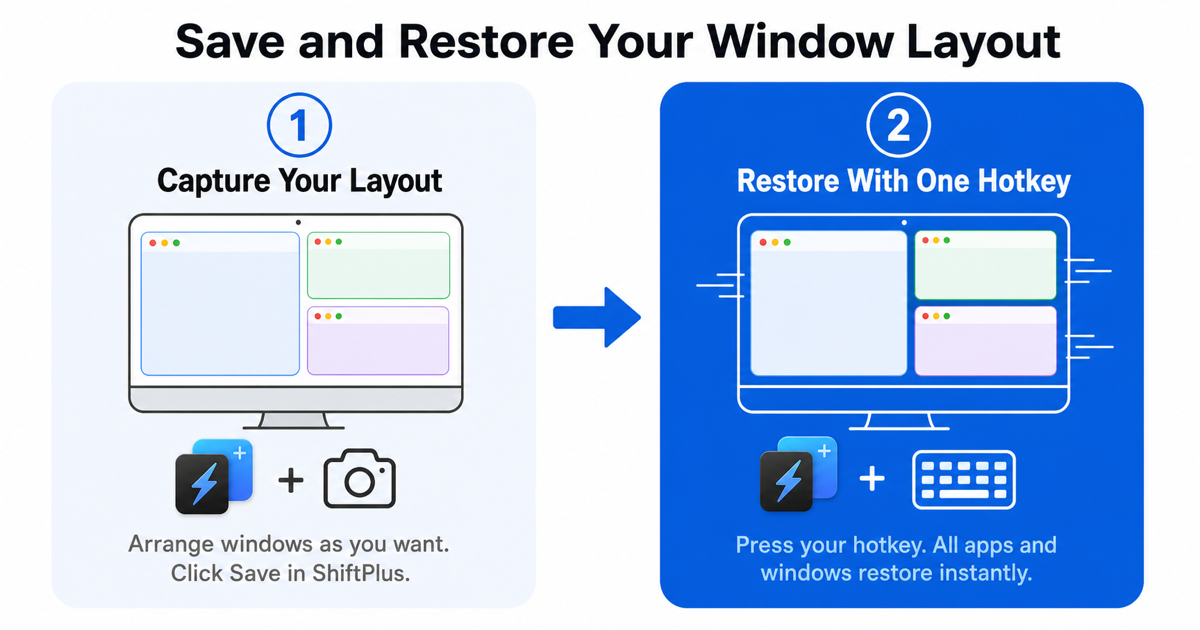
- Arrange your apps, windows, and browser tabs the way you want them.
- Click the ShiftPlus menu bar icon → Capture current setup, give it a name.
- Any time you want to return to that setup, select it from the ShiftPlus menu or press its assigned hotkey.
- ShiftPlus launches or focuses each app, opens the right paths and URLs, and snaps windows into their logical positions on the right Spaces.
The whole restore takes a few seconds. You don't do anything manually.
Why logical layout matters for multi-monitor setups
This is where ShiftPlus diverges most clearly from pixel-based tools. If you save "editor in Left Half" and later open that workspace on a smaller laptop display instead of your desk monitor, the editor still goes to the left half of whatever screen is available. The layout adapts rather than breaking.
For anyone who works both docked and undocked — which is most laptop users — this is the difference between a tool that's reliable and one that only works in one specific physical setup.
Multiple workspaces for multiple contexts
You can capture as many workspaces as you need. A common setup:
- Work — editor, terminal, company browser profile with internal tools
- Client A — different project path, different browser profile, client's design files
- Personal — personal browser profile, notes app, no work apps
Switching between them is one hotkey. You get the focus of single-context work without the overhead of tearing down and rebuilding manually. See how to restore your macOS workspace automatically for more on the multi-context workflow.
Comparison
| Approach | Saves positions | Survives restart | Restores apps & tabs | Multi-monitor |
|---|---|---|---|---|
| Manual re-arrangement | ✗ | ✗ | ✗ | ✗ |
| macOS "Reopen windows" | Partial | Partial | Partial | ✗ |
| Moom (snapshot) | ✅ | ✗ | ✗ | Partial |
| Stay (auto-reposition) | ✅ | ✅ | ✗ | ✅ |
| ShiftPlus | ✅ | ✅ | ✅ | ✅ |
"Survives restart" means the tool can restore your layout after a full cold boot, not just within a session. "Restores apps & tabs" means the actual working context — project files, browser URLs, terminal state — comes back, not just the window frames.
FAQ
Can macOS save window layouts natively?
No. macOS has no built-in feature that saves a window arrangement and restores it on demand. The "Reopen windows when logging back in" setting attempts to reload the previous session after a restart, but it doesn't save layouts explicitly, loses window positions frequently, and ignores Space assignments. For reliable layout saving, you need a third-party tool.
How do I restore window positions after unplugging a monitor?
The native macOS behavior dumps all windows from the disconnected display onto your primary screen in a pile. To recover, you either rearrange manually or use a tool that remembers positions. Stay auto-repositions windows to stored positions when you reconnect a monitor. ShiftPlus lets you trigger a full workspace restore, which snaps everything back into a logical layout (Left Half, Right Half, etc.) regardless of which monitor you're currently using — including after the reconnect.
What's the difference between a window manager and a workspace manager?
A window manager controls how individual windows are sized and positioned — snapping to halves, thirds, corners. Tools like Rectangle, Magnet, and Moom are window managers. A workspace manager controls a context: which apps are open, which projects they're looking at, which browser profiles are loaded, and how windows are arranged — all together. ShiftPlus is a workspace manager. You can read a full comparison of macOS workspace managers to see where different tools fall.
Does ShiftPlus restore window layouts after a restart?
Yes. Unlike window snapshot tools that require apps to already be running, ShiftPlus launches the apps itself and positions their windows as part of the restore. It works from a completely cold boot — no apps need to be open beforehand. For a step-by-step walkthrough of setting this up, see how to reopen apps and windows after a Mac restart.
Is there a free way to save window layouts on Mac?
Rectangle (free, open-source) is excellent for snapping windows into positions using keyboard shortcuts, but it doesn't save layouts — it tiles live windows. Moom has a free trial and includes snapshot saving. ShiftPlus has a 14-day free trial with full features. There's no free tool that handles the full picture: positions + app launching + browser profiles + Space restoration. If your need is purely "put this window in the left half," Rectangle is free and sufficient. If you need your actual working environment to come back, the trial tools are where to start.
Stop rebuilding your layout
Window layout restoration is a solved problem — just not by macOS itself. The right tool depends on what "restore my layout" means to you:
- Just reposition open windows on this monitor swap? Stay is excellent for that specific job.
- Snap windows into place faster? Moom's snapshot feature covers it, within a live session.
- Bring back your full working environment after a restart, monitor change, or context switch? That's what ShiftPlus is built for.
Done rebuilding your layout after every disruption? Download ShiftPlus and try it free for 14 days — capture your workspace once, restore it anywhere in one hotkey press.