How to Open Links in a Specific Chrome Profile on Mac
Links from Slack, Mail, and other apps always open in whichever Chrome profile you used last. Here is every real fix — from link-routing utilities to the context-first approach that eliminates the problem at the source.
Every time you click a link in Slack, Mail, or Notion on macOS, Chrome opens it — but never necessarily in the profile you want. If you run separate work, personal, and client profiles, that means constant manual detours: copy the URL, switch profiles, paste, continue.
The root cause is a macOS design decision, not a Chrome bug. Understanding it reveals exactly which fixes actually work.
TL;DR
ShiftPlus does not intercept links — it makes the right Chrome profile frontmost whenever you activate a workspace, so macOS routes clicks there automatically. Pair it with a rule-based router for full coverage.
- Root cause: macOS routes all links to one registered browser app. There is no per-profile "default browser" slot — Chrome receives the URL and opens it in whichever profile window was last active.
- Velja / Choosy / Finicky: Rule-based link routers that intercept every click and dispatch it to a specific Chrome profile via the
--profile-directoryflag. Effective, but rules must be configured upfront for each URL pattern. - Browserosaurus: Intercepts every link and shows a manual picker — no rules, but one extra click every time.
- Chrome
--profile-directoryflag: Useful for launching a specific profile on demand; does not intercept external links from other apps. - ShiftPlus context-first approach: Activates a full workspace (pinned Chrome profile + apps + window layout) with one hotkey, ensuring the right profile is already frontmost. Complements rule-based routers rather than replacing them.
Why every link opens in the "wrong" Chrome profile
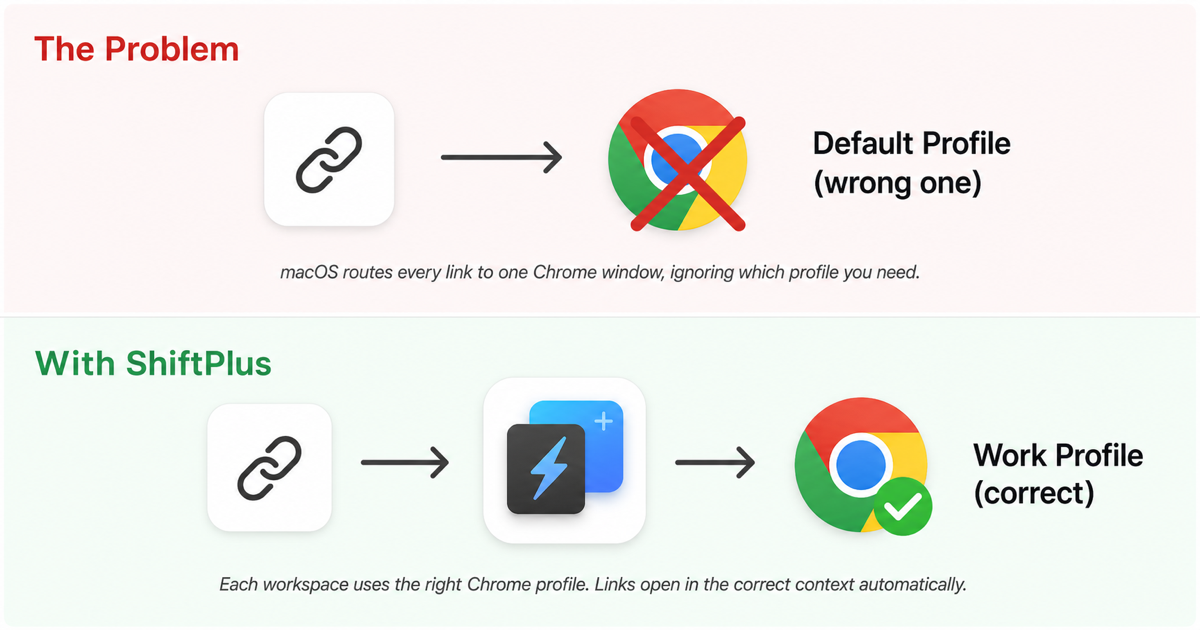
macOS does not understand browser profiles when routing link clicks. From the operating system's perspective, "Chrome" is a single application registered as the URL scheme handler for http:// and https://.
When you click a link anywhere outside Chrome — in Slack, in Mail, in Finder, in a terminal — macOS looks up which app owns the https handler, finds Google Chrome, and hands the URL to Chrome's process. Chrome then opens that URL in whichever profile window it considers most recently active.
Two things follow directly from this:
- There is no per-profile default browser setting on macOS. You cannot tell the operating system "send links to Profile 1 from work apps and to Profile 2 from personal apps." That concept does not exist at the OS level.
- The wrong-profile problem is deterministic, not random. Chrome always opens external links in the last focused window. If your work profile window was frontmost before you switched to Slack and clicked a link, that link opens in your work profile. The problem feels inconsistent only because the frontmost window changes throughout the day.
The only durable solutions either intercept the URL before it reaches Chrome, or guarantee the right Chrome profile is already frontmost when the click happens.
Option comparison
The table below covers every practical approach available on macOS in 2026. Third-party prices change — check each vendor's site for current figures.
| Tool / Method | How it works | Per-rule setup cost | Price | Main limitation |
|---|---|---|---|---|
| Velja | Rule-based link router; matches URL patterns, source apps, or domains and opens the link in a specific browser or Chrome profile | Low — GUI rule builder | Free (Mac App Store) | Rules must be created manually; new URLs or domains need a new rule |
| Choosy | Intercepts every link and applies a rule list; falls back to a manual picker when no rule matches | Low–Medium | See vendor site | The per-click fallback picker adds friction when a rule does not fire |
| Browserosaurus | Intercepts every link and always shows a browser/profile picker — no rules | None — no configuration needed | Free (Mac App Store) | Requires a manual choice on every single link click |
| Finicky | Open-source link router driven by a JavaScript config file; highly scriptable | High — requires editing a JS config file | Free (open source) | Config file is code; non-technical setups are impractical |
Chrome --profile-directory flag / AppleScript |
Shell command or script that opens (or focuses) a specific Chrome profile window on demand | Medium — one script or shortcut per profile | Free | Does not intercept external links; only useful for proactively launching a profile |
| ShiftPlus context-first | Activates a full workspace — pinned Chrome profile, apps, window positions — with one hotkey, making the right profile frontmost before you click | Low — configured once per workspace | See vendor site | Does not intercept links; relies on the correct profile already being active |
A few notes on each option
Velja is the most popular free route for automatic URL-rule routing. It supports Chrome profiles by launching Chrome with the --profile-directory argument. You build rules in a simple GUI: match a URL pattern or source app, choose the target Chrome profile. Setup takes a few minutes per rule, and it works silently once configured.
Choosy follows a similar model with an optional picker fallback — useful if not every URL maps cleanly to one profile. Worth trying if Velja's pure rule-based approach leaves edge cases unhandled.
Finicky suits developers who want maximum programmability. A single JavaScript config file controls everything, which means you can write logic like "links from client A's Jira subdomain → Profile 3." The cost is that any change means editing code.
Browserosaurus removes all setup friction by skipping rules entirely. Every click shows a picker. It is the right starting point if you want to experiment before committing to a rule set.
The --profile-directory flag is worth knowing because Velja and Finicky both use it internally when targeting Chrome profiles. On its own it is a launch mechanism, not a link interceptor — run it from a terminal, a Raycast script, or an Alfred workflow to open a specific profile proactively.
The ShiftPlus angle: context-first, not link interception
ShiftPlus approaches the problem from a different direction. It does not intercept links between applications. What it does is ensure the correct Chrome profile is already the frontmost window before you click anything.
When you activate a workspace in ShiftPlus with its assigned hotkey, ShiftPlus:
- Brings the pinned Chrome profile for that workspace to the front.
- Restores the rest of the context — other apps, window positions, terminal sessions, monitor layout.
- Leaves macOS's link-routing behaviour completely untouched.
Because the correct Chrome profile is frontmost, any link you click from Slack, Mail, or another app while that workspace is active opens in that profile. macOS routes to the last-active Chrome window, and ShiftPlus controls which window that is.
Where this works well: You activate your "Client A" workspace with one hotkey, then click a link from that client's Slack channel. The link opens in the Client A Chrome profile without any rule, any picker, or any extra click.
Where you still need a rule-based router: If you receive a personal email while your work workspace is active and click its link, the link will open in the work profile — because that profile is still frontmost. For cross-context link routing (links that arrive outside your current workspace), pairing ShiftPlus with Velja gives you complete coverage: ShiftPlus handles context switching, Velja handles URL-pattern rules.
For more on switching between Chrome profiles using hotkeys, see How to Switch Chrome Profiles with a Hotkey on macOS. For the complete guide to setting up and managing Chrome profiles, see How to Manage Multiple Chrome Profiles on macOS.
Frequently asked questions
Can Chrome open links in a specific profile automatically?
Not on its own. Chrome has no built-in mechanism to route external links — from Slack, Mail, or any other app — to a specific profile. When a link arrives from outside Chrome, macOS hands the URL to Chrome's process, which opens it in whichever profile window was most recently active. Automatic routing requires either a link-interception tool (Velja, Choosy, or Finicky) or a workflow that guarantees the right profile is frontmost before the click, such as a workspace manager like ShiftPlus.
How do I set a different default browser per Chrome profile on Mac?
You cannot — macOS provides a single default browser slot, not one per profile. The system registers one app as the handler for http and https links, and that registration covers all Chrome profiles identically. The practical workaround is a link-routing app such as Velja, which intercepts every link click and dispatches it to a specific Chrome profile based on URL or source-app rules you configure.
Why do links always open in my last-used Chrome profile?
This is macOS's documented link-routing behaviour. When you click a link outside Chrome, the system passes the URL to Chrome's process. Chrome opens the URL in its most recently focused window, which belongs to whichever profile you last interacted with. The fix is either to keep the correct profile frontmost before clicking (a workspace manager approach) or to intercept links before Chrome receives them (a link-router approach).
Do link routers like Velja work with Chrome profiles?
Yes. Velja and most other link-routing apps support Chrome profiles by invoking Chrome with the --profile-directory command-line argument under the hood. You create a rule that matches a URL pattern or source app, then set the target to a specific Chrome profile by selecting it from Velja's browser list. When a matching link is clicked, Velja opens or focuses that profile directly. Setup takes a few minutes per rule, and it runs silently in the background after that.
Does ShiftPlus replace a link router like Velja?
No — they solve different layers of the same problem. ShiftPlus ensures the right Chrome profile is frontmost for your current work context, which covers the majority of links you click while that workspace is active. Velja adds explicit URL-pattern rules for links that arrive outside your current context — for example, a personal email arriving while your work workspace is open. For complete, automatic link routing across every scenario, use both: ShiftPlus for full context switching, Velja for URL-rule interception.