How to Switch Chrome Profiles with a Hotkey on macOS
Chrome has no keyboard shortcut for switching profiles — you're stuck clicking the avatar menu. Here's every workaround, plus how to bind each client or project profile to its own global hotkey.
If you use Chrome with separate work, personal, and client profiles on macOS, you already know the routine: click the avatar circle in the top-right corner, scan the dropdown, click the profile. Repeat ten times a day.
It feels like a small thing until you're deep in a task and the interruption breaks your concentration. The honest question is: why doesn't Chrome have a keyboard shortcut to switch profiles?
The answer is that it never shipped one. But there are several real workarounds — and one approach that goes further than a shortcut ever could.
TL;DR
ShiftPlus does what Chrome's profile menu can't: it assigns a global hotkey to an entire workspace — pinned Chrome profile included — so one keystroke switches your whole context, not just a browser tab.
The problem: Chrome buries profile switching in a menu
Chrome's profile system is excellent at isolating sessions (separate cookies, history, extensions, Google sign-ins). What it lacks is any keyboard-accessible path to move between profiles.
The only built-in navigation is the avatar icon → profile card overlay → click a name. There is no View menu item for "Switch Profile", no assignable shortcut in Chrome settings, and no chrome:// flag that enables one.
This matters most when you are a freelancer managing three client Slack logins, a developer keeping a work GitHub separate from a personal one, or anyone who opens the wrong profile six times before lunch. The cost is not one click — it is the micro-context-switch of pulling your hands off the keyboard to reach for the mouse, every time.
Native workarounds
None of these are perfect, but each solves a specific slice of the problem.
Cmd+` — cycle Chrome windows of the same profile
Cmd+\`` (backtick) cycles through all open windows of the *frontmost application*. If you keep each Chrome profile in its own dedicated window, pressing Cmd+`` while Chrome is active will rotate through them.
Limitation: It cycles all Chrome windows — not just profiles — in the order macOS stacked them, so with six windows open it is effectively random. It also only works when Chrome is already in focus, which rules it out as a true global hotkey.
macOS App Shortcuts — assign a menu-item shortcut
In System Settings → Keyboard → Keyboard Shortcuts → App Shortcuts, you can add a shortcut for any menu item by typing its exact name.
The problem: "Switch to Profile" is not a menu item in Chrome. The profile names appear only in the avatar dropdown overlay, which macOS Shortcuts cannot target. This route is a dead end for Chrome specifically.
chrome://settings — find your profile directory names
Before using the CLI approach below, you need to know Chrome's internal directory name for each profile. Navigate to chrome://version in each profile window. Look for the Profile Path line — it ends with something like /Default, /Profile 1, /Profile 2, /Profile 3, etc. Note the folder name for each profile you want to target.
--profile-directory CLI flag — launch a specific profile from Terminal
This is the most technically precise native method. The open command on macOS accepts arguments to pass directly to an app:
open -na "Google Chrome" --args --profile-directory="Profile 1"
Replace "Profile 1" with the directory name you found at chrome://version. To open your default profile:
open -na "Google Chrome" --args --profile-directory="Default"
You can turn this into a shell alias or a small shell script, then trigger it from any launcher. If the profile is already open, Chrome focuses the existing window instead of spawning a duplicate.
The free Mac Launch Script Generator writes that script for you — pick the browser, paste in the profile directory name, add any other apps you want opened alongside it, and copy one block into Terminal.
Limitation: This launches a Chrome window for that profile — it does not focus an already-open window reliably on all macOS versions. And it still requires a trip to your terminal or launcher, not a single global hotkey.
Launcher-based switching (Raycast / Alfred)
Both Raycast and Alfred let you wrap the shell commands above into searchable shortcuts or hotkeys:
- In Raycast, create a Script Command or use the Shell extension to bind
open -na "Google Chrome" --args --profile-directory="Profile 1"to a hotkey. - In Alfred, create a Workflow with a Hotkey trigger connected to a Run Script action.
This is a genuine step up — you get a repeatable, keyboard-driven way to open any Chrome profile. ShiftPlus has its own Raycast integration (see the Raycast integration page) that lets you trigger full workspaces from Raycast's command palette.
What launchers still can't do: They open a Chrome window, but they don't restore the rest of your context — the other apps, window positions, or terminal sessions that belong to that project. And they cannot ensure that a link clicked in Slack or Mail will land in the correct profile.
Profile-per-workspace with ShiftPlus
ShiftPlus takes a different model: instead of switching Chrome profiles in isolation, you pin a Chrome profile to an entire workspace.
A workspace in ShiftPlus is a snapshot of everything belonging to one context — your client project, your personal setup, your development environment. When you activate a workspace with its hotkey (⌃⌥1, ⌃⌥2, etc., or any custom binding you choose), ShiftPlus:
- Brings the correct Chrome profile window to the front (or opens it if it was closed).
- Restores the other apps in that workspace — VS Code project folder, Slack team, Terminal session.
- Arranges windows to their saved positions across all monitors.
The key insight for the "open link in the right profile" problem: because ShiftPlus made the correct Chrome profile the frontmost window before you clicked a link, the link opens there automatically. You are not routing links after the fact — you are already in the right context.
Freelancers managing several client accounts benefit especially from this model: one hotkey per client, and every link from that client's Slack messages or emails lands where it belongs.
For a deeper look at the Chrome profiles side of this setup, see the companion guide: How to Manage Multiple Chrome Profiles on macOS.
Comparison: profile-switching methods on macOS
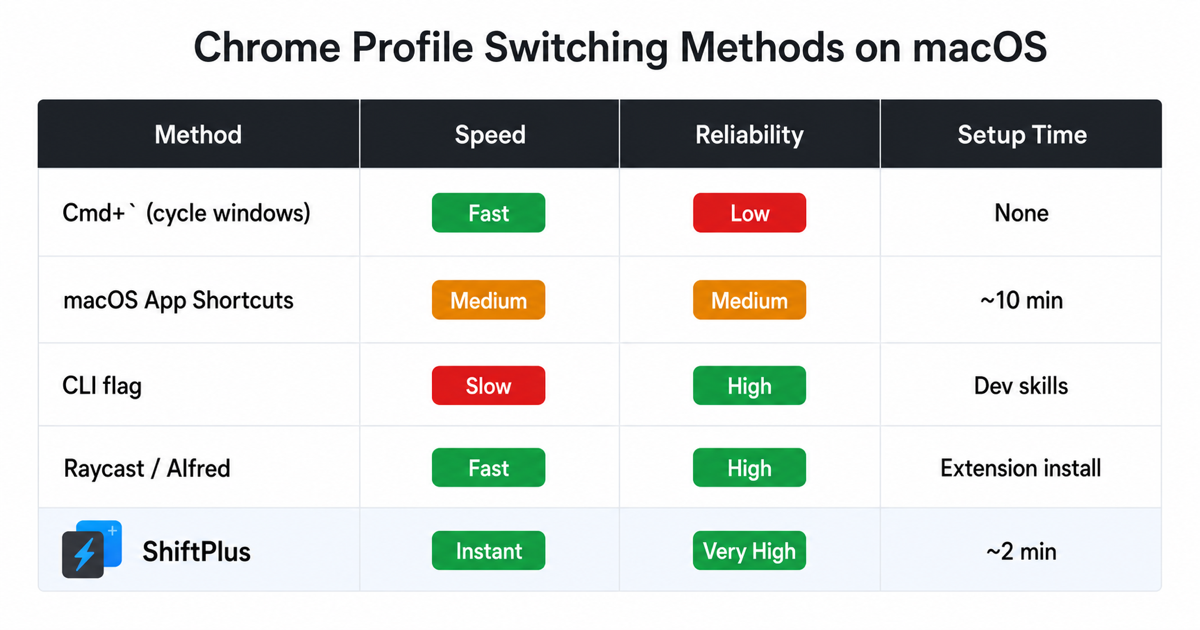
| Method | Setup effort | True global hotkey | Opens links in right profile | Restores tabs / apps |
|---|---|---|---|---|
| Cmd+` window cycling | None | ❌ Chrome must be active | ❌ | ❌ |
| macOS App Shortcuts | Low | ❌ Not supported by Chrome | ❌ | ❌ |
--profile-directory CLI flag |
Medium | ✅ With a launcher | ❌ | ❌ |
| Raycast / Alfred script | Medium | ✅ | ❌ | ❌ |
| ShiftPlus workspace hotkey | Low–Medium | ✅ | ✅ (profile is frontmost) | ✅ |
FAQ
Does Chrome have a keyboard shortcut to switch profiles?
No. As of 2026, Chrome for macOS has no built-in keyboard shortcut to switch between profiles. The profile picker is only accessible via the avatar icon in the top-right corner of the browser window. The closest native option is `Cmd+`` to cycle Chrome windows, but that cycles all windows, not profiles specifically.
How do I open a link in a specific Chrome profile on Mac?
The most reliable method is to ensure the correct Chrome profile window is already in the foreground before clicking the link. Tools like ShiftPlus automate this by activating an entire workspace — including the pinned Chrome profile — with a single hotkey. Manual fallbacks include the --profile-directory CLI flag or a Raycast script, but those require intentional action before each link click. For a full breakdown of every approach — including link-routing apps like Velja and Choosy — see How to Open Links in a Specific Chrome Profile on Mac.
Can I launch a Chrome profile from the terminal?
Yes. Use:
open -na "Google Chrome" --args --profile-directory="Profile 1"
Find the exact directory name for your profile at chrome://version → Profile Path. The last path segment (e.g., Default, Profile 1, Profile 2) is what you pass to --profile-directory. If that profile is already open, Chrome will focus its window.
How do freelancers keep client Chrome profiles separate?
The typical setup is one Chrome profile per client, each signed into that client's Google Workspace, with the relevant extensions installed. The hard part is ensuring client links — from email, Slack, project management tools — open in the right profile automatically. ShiftPlus handles this through workspaces: assign a workspace per client, pin that client's Chrome profile to it, and activate it with a hotkey at the start of each client session. Links clicked while that workspace is active land in the correct profile without any manual routing. See the freelancers guide for the full setup.