How to Stop macOS From Rearranging Your Spaces (and Restore Them After Restart)
macOS can reorder Spaces automatically and can reopen apps after a restart, but it cannot save multiple named app-to-Space setups. Here's what the native controls do and where a workspace manager helps.
You open Mission Control and your Spaces are in a completely different order than yesterday. Space 3 — the one you reserved for email — is now Space 1. Your coding Space is buried at the end. Nothing moved on its own, but macOS quietly reshuffled everything based on what you used most recently.
There is a one-toggle fix for that. The toggle does not create a restorable project layout, though. macOS can reopen apps and windows after login, and it can assign one app to one Desktop, but it cannot save several named app-to-Space setups and switch between them. This guide covers those boundaries and the workspace-manager option.
TL;DR
The immediate fix is System Settings → Desktop & Dock → Mission Control → turn OFF "Automatically rearrange Spaces based on most recent use." macOS can also reopen apps and windows after login, or pin an app globally with Dock → Options → Assign To. What it cannot save is a named, per-project app-to-Space setup. ShiftPlus captures that setup and rebuilds it on demand.
The one-toggle fix
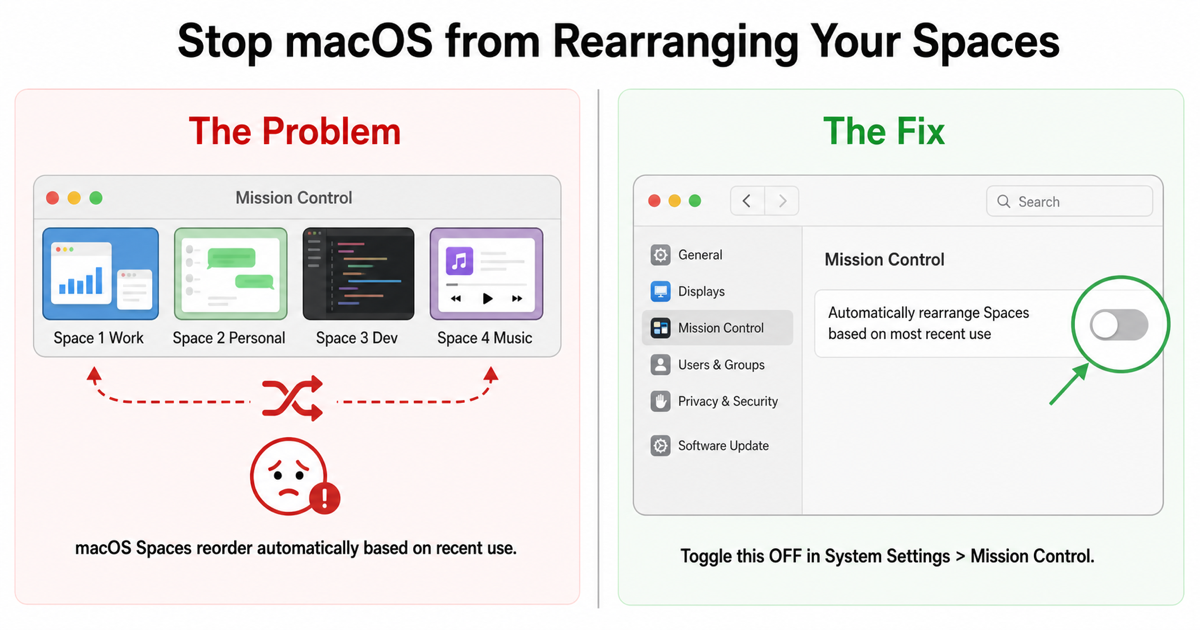
If your Spaces keep reordering themselves during normal use, this is the first setting to check.
System Settings → Desktop & Dock → Mission Control → "Automatically rearrange Spaces based on most recent use" — turn it OFF.
When enabled, this setting allows macOS to reorder Spaces based on recent use. Turning it off removes that automatic reordering rule.
Once you turn it off, macOS stops reordering Spaces by recent use. You can then keep a logical sequence such as Space 1 for focused work, Space 2 for communication, and Space 3 for reference.
That solves the in-session rearrangement. There is a second, harder problem that this toggle does nothing about.
What the toggle does not fix
Disabling "Automatically rearrange Spaces" controls ordering. It does not control app or window restoration after login.
Apple's login-window documentation explains that macOS can reopen apps and windows from the previous session. Its Spaces guide also documents Dock → Options → Assign To → This Desktop, which gives an app one persistent Desktop assignment. Results still depend on whether each app restores its own windows and whether it uses tabs, fullscreen windows, or multiple windows.
The missing native feature is a named project context:
- Dragged placement is not a saved profile — placing a window on Desktop 3 does not create a reusable mapping you can name and restore later.
- One global assignment per app — Dock assignment cannot put the same app on Desktop 2 for one project and Desktop 4 for another.
- No coordinated project restore — macOS does not bundle app placement with browser profiles, URL sets, terminal environment, and a saved window arrangement.
For the full breakdown of what "Reopen windows when logging back in" actually does and where it falls short, see our detailed guide on reopening apps and windows after a Mac restart.
If the native reopen and Dock-assignment options are enough for your setup, no third-party tool is required. A workspace manager becomes useful when you need several named layouts or coordinated project context.
Native partial workarounds
These are the tools macOS provides to reduce the problem. None of them fully solve app-to-Space restoration, but each is worth understanding before reaching for a third-party tool.
| Workaround | Keeps Space order | Restores app→Space mapping | Survives restart | Per-project setups |
|---|---|---|---|---|
| Turn off "Auto-rearrange Spaces" | ✅ | ❌ | ✅ (setting persists) | ❌ |
| Assign app to Desktop (Dock → Options) | Partial | ✅ (one Space per app) | ✅ | ❌ |
| Stage Manager | ❌ | ❌ | ❌ | ❌ |
| "Reopen windows when logging back in" | ❌ | ❌ | Partial | ❌ |
Assign an app to a specific Desktop: Right-click an app's Dock icon → Options → Assign To → This Desktop. Apple documents this as making the app open in that Space. The limitation is scope: this is one global setting per app, so you can't tell Safari "open on Space 2 for writing and Space 4 for research" as two separate named setups.
Stage Manager: Introduced in macOS Ventura, Stage Manager uses a different window-grouping model that conflicts with Space-based workflows. If you're experiencing rearrangement problems, turning Stage Manager off (System Settings → Desktop & Dock → Stage Manager) can eliminate a source of unexpected shuffling — but it's a fix for a different issue, not Space ordering per se.
"Reopen windows when logging back in": This checkbox appears at logout and restart. It asks macOS and participating apps to restore the previous session. It can bring apps and windows back, but it is not a named workspace system and does not let you switch between different project layouts.
Full restoration with ShiftPlus
For users who need several named Space layouts with project-specific context, the native options stop short.
ShiftPlus is a native macOS workspace manager that captures which Space each app is assigned to and rebuilds those assignments on demand. You arrange your Spaces once — coding on Space 2, communication on Space 3, writing on Space 4 — capture the workspace, and restore it with a single hotkey any time: after a restart, after a macOS update, or when switching between projects.
What a ShiftPlus workspace captures:
- Space assignments — which app lives on which virtual desktop, rebuilt in order on restore.
- Window arrangements — Left Half, Right Half, Fullscreen, Center, and eight other logical positions. Positions are stored as intent rather than raw pixels, so a layout captured on a 4K external monitor restores sensibly on a 13-inch MacBook.
- Browser profiles — Chrome with your work Google account, Safari with personal tabs, each restored to the right profile automatically.
- Terminal environment variables — per-workspace env injection into 15+ terminal emulators.
- App state — which apps are open and which file or URL they had loaded.
When you restore, ShiftPlus switches to each recorded Space and launches the apps assigned there, so macOS creates their windows on the active desktop. If an explicitly assigned app is already running on the wrong Space, ShiftPlus can ask permission to quit it gracefully and relaunch it in the right place. It does not rely on macOS remembering the assignment across sessions.
One important technical detail: the current restore pipeline works with System Integrity Protection (SIP) enabled. ShiftPlus does not call the blocked private APIs that directly move another app's window. It uses one private SkyLight call to switch the active Space, then follows the normal app-launch path. The full implementation, failure modes, and trade-offs are documented in how ShiftPlus restores macOS Spaces without disabling SIP.
Private SkyLight linkage still rules out Mac App Store distribution, so ShiftPlus ships as a direct download with signed Sparkle updates. A future macOS release could also restrict the remaining Space-switch call, which is why this is a practical implementation rather than a permanent platform guarantee.
For a full walkthrough, see how to restore your macOS workspace automatically and our roundup of the best macOS workspace managers in 2026.
FAQ
Why does macOS rearrange my Spaces?
The culprit is "Automatically rearrange Spaces based on most recent use," which is enabled by default. After a day of work, the Space you used most recently gets promoted to position 1, cascading every other desktop into a new order. Turn it off at System Settings → Desktop & Dock → Mission Control and your Spaces will hold whatever order you assigned them.
Does macOS restore Spaces after a restart?
Partially. macOS can reopen apps and windows from the previous session, and Dock → Options → Assign To can keep one app tied to one Desktop. It does not provide named app-to-Space profiles for different projects. ShiftPlus adds that layer by capturing a workspace and rebuilding it on demand.
Can I assign an app to always open on a specific Space?
Yes. Right-click an app's Dock icon → Options → Assign To → This Desktop. The limitation is that this is one global setting per app. It cannot store different assignments for different named projects.
How does ShiftPlus restore apps to the right Space?
When you capture a workspace, ShiftPlus records which Space each app is assigned to. On restore, it activates the target Space first and launches the app there, so the new window starts on the correct desktop. For explicitly assigned apps already running on the wrong Space, ShiftPlus can offer a consented graceful quit and relaunch. This pipeline works with SIP enabled; see the technical Spaces implementation for the private-API boundary and current limitations.
The short version
If your Spaces keep rearranging during normal use: System Settings → Desktop & Dock → Mission Control → turn off "Automatically rearrange Spaces based on most recent use." One toggle, immediate fix.
If you also want your app-to-Space assignments to survive restarts and support multiple project layouts: that's what a workspace manager is for. ShiftPlus captures your setup once and rebuilds it on demand — after restarts, after macOS updates, when switching between projects.