How to Sync Your Mac Setup Across Multiple Macs (2026)
You configure everything perfectly on your desktop — then your MacBook feels like a stranger's machine. Here's a layer-by-layer guide to actually syncing your Mac setup across devices.
You spent a weekend getting your desktop exactly right. The right apps in the right workspaces, browser profiles wired up, hotkeys memorized. Then you open your MacBook and it feels like a stranger's machine. The right apps aren't open. The wrong browser profile is active. You start from scratch — again.
This guide covers every layer of a Mac setup, what actually syncs natively through iCloud, what doesn't, and which tools close each gap.
TL;DR
- iCloud syncs files, Safari, Keychain, and some app data — not window layouts, open apps, or workspace context.
- Settings and dotfiles need a separate tool (Mackup, chezmoi, or a git-backed dotfiles repo) to travel between machines.
- Installed apps need a Homebrew Brewfile to replicate consistently on a second Mac.
- Workspace context — which apps are open, in which Space, with which browser profile — requires a dedicated workspace manager. ShiftPlus syncs this layer via iCloud/CloudKit so your defined workspaces appear on every signed-in Mac automatically.
- For most people, a complete sync stack is three tools: a dotfiles manager, a Brewfile, and ShiftPlus for the workspace layer.
What iCloud Actually Syncs Between Macs
iCloud does more than most people realize — and less than most people expect.
What iCloud syncs natively:
- Desktop and Documents (if enabled in iCloud settings): files saved here appear on both Macs automatically.
- iCloud Drive: any file you explicitly place in iCloud Drive.
- Safari: bookmarks, reading list, open tabs, and browsing history.
- Keychain: passwords, Wi-Fi networks, and certificates.
- Some system preferences: Wi-Fi passwords, Bluetooth pairings, and a handful of settings for apps that explicitly opt into iCloud.
- Photos, Messages, Notes, Reminders, Calendar: Apple's own apps use iCloud containers and sync seamlessly.
- App Store app data for participating apps: apps that store data in an iCloud container sync it automatically — but most third-party productivity apps don't do this.
What iCloud does NOT sync:
This is where most people run into a wall:
- Window layouts: iCloud has no concept of "this app should be on the right half of Space 2." There's no API for it in macOS.
- Open apps and running state: iCloud doesn't know which applications are currently running, or in what arrangement.
- Chrome, Firefox, or Brave profiles: these browsers sync via their own accounts (Google Account, Firefox Sync), not iCloud — and even then, they don't sync which profile was active in which window or how it was arranged.
- Workspace context: the combination of apps + browser profiles + window arrangement + Space assignment that defines your working state — none of this is readable or syncable by iCloud.
- Most app preferences: unless an app was explicitly built with iCloud syncing, its preferences live locally in
~/Library/Preferences. Mackup supports dozens of apps here that iCloud doesn't touch. - Shell environment:
.zshrc,.bash_profile, dotfiles, aliases, custom PATH entries — these live in your home directory and go nowhere on their own. - Installed applications (non-App Store): iCloud can restore App Store apps, but Homebrew packages, direct
.dmginstalls, and anything outside the App Store require separate handling.
The core distinction: iCloud handles your data. It doesn't handle your environment.
Layer-by-Layer: What Syncs and With What
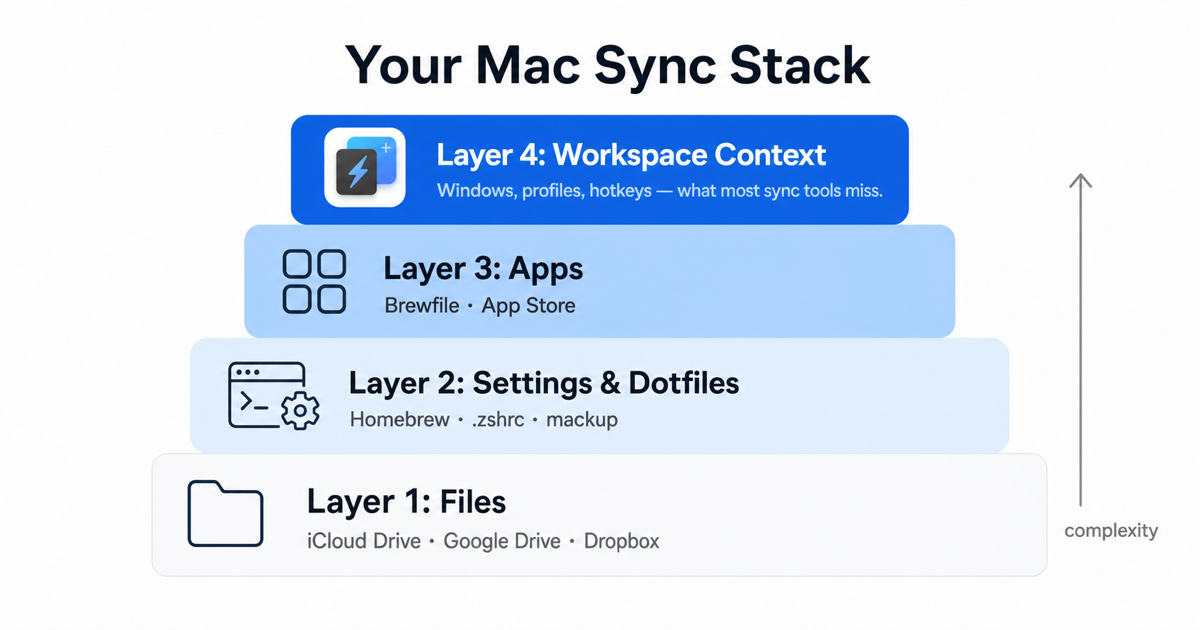
Every Mac setup has roughly five layers. Here's a breakdown of what covers each one:
| Layer | Tool(s) | What it covers | Cost |
|---|---|---|---|
| Settings & dotfiles | Mackup, chezmoi, or a manual dotfiles repo | Shell config (.zshrc, aliases, PATH), app preferences stored in ~/Library/Preferences, and custom config files |
Free |
| Installed apps | Homebrew Brewfile | Declarative list of CLI tools, casks (GUI apps), and Mac App Store apps — run brew bundle on a new Mac to reinstall your stack |
Free |
| Documents & files | iCloud Drive, Dropbox, or similar | Files in synced folders appear on both Macs automatically | Free tier / paid for extra storage |
| System & Safari settings | iCloud (built-in) | Keychain, Safari bookmarks/tabs, Wi-Fi passwords, and some app data for iCloud-enabled apps | Free (included in Apple ID) |
| Workspace context | ShiftPlus | Which apps belong to each workspace, browser profiles, window arrangements, Space assignments, and hotkeys — synced via iCloud/CloudKit across every signed-in Mac | One-time paid license (both plans include sync) |
Settings and dotfiles
Your shell environment — .zshrc, custom aliases, environment variables, PATH additions, Git config, editor settings — lives in plain files in your home directory. iCloud doesn't touch them.
Mackup is the simplest starting point: point it at a storage backend (iCloud, Dropbox, or a git repo), and it symlinks your dotfiles and a wide range of app preference files to the shared location. It supports over 300 apps out of the box with known preference paths.
chezmoi takes a more structured approach: it manages your dotfiles as a git repository with templating for machine-specific differences. Better suited if your two Macs differ meaningfully — say, a work machine with corporate proxies and a personal machine without them.
A manual dotfiles repo on GitHub is the zero-dependency option. You write the install scripts yourself, commit when you change something, and pull on your second machine. More work, more control, and no magic.
None of these are automatic. You pick a tool, set it up once, and maintain the habit of pushing changes.
Installed apps: Homebrew Brewfile
If you use Homebrew, brew bundle dump produces a Brewfile that lists every formula, cask, and Mac App Store app currently installed. Commit it to your dotfiles repo. On a new or second Mac: brew bundle install reproduces your stack.
This doesn't handle apps installed via direct .dmg download outside Homebrew or the App Store — those need manual reinstall or a note in your setup docs.
Documents and files
iCloud Drive with Desktop & Documents sync covers most people here. Enable it on both Macs in System Settings → Apple ID → iCloud → iCloud Drive, and the folder structure is identical between machines. Dropbox and similar alternatives work the same way and add cross-platform reach.
Workspace context: the layer that's hardest to sync
This is the gap that surprises people. You can sync all your files and dotfiles correctly, install the same apps, and still sit down at your second Mac feeling like something is wrong — because the working state isn't there. The right apps aren't open. The browser is on the wrong profile. The windows are wherever they ended up last.
No native macOS feature captures or syncs workspace context. No iCloud setting, no third-party cloud service, no Shortcuts automation. This is what a dedicated workspace manager handles.
ShiftPlus: Workspace Context Across Every Mac
ShiftPlus lets you define named workspaces — each one specifying which apps belong there, which browser profiles to open, which macOS Spaces to pin apps to, and what window arrangement to use. Restore a workspace and all of it snaps back in one action.
The sync layer is built on Apple's CloudKit, the same private-database technology Apple uses for its own apps. When you make any change to a workspace — add an app, rename a profile, reassign a Space — the change propagates to your other Macs within seconds. There's no export file, no sync button to push, and no separate ShiftPlus account to manage.
One design detail worth understanding: ShiftPlus syncs intent, not raw pixel coordinates. Window positions that make sense on a 5K iMac are meaningless on a 13-inch MacBook. So what syncs is the arrangement instruction — Left Half, Right Half, Fullscreen, Centered — and each Mac recomputes actual window positions for its own screen. A workspace built on your desktop restores correctly on your laptop without any adjustment.
This is covered in detail in the ShiftPlus iCloud Sync FAQ, which walks through setup, security, offline behavior, and troubleshooting.
Which plan includes sync?
iCloud Sync is included in both paid ShiftPlus licenses — neither requires a subscription:
| Plan | Price | iCloud Sync | Macs covered |
|---|---|---|---|
| Pro (1 Device) | $24, one-time | ✓ Included | 1 Mac |
| Pro (2 Devices) | $39, one-time | ✓ Included | 2 Macs |
The free trial includes sync for the trial period so you can evaluate it before buying. If you run ShiftPlus on a desktop and a laptop, the Pro (2 Devices) license is the natural fit.
For related reading: how to restore your macOS workspace automatically covers the full capture workflow, Space assignment, and browser profile switching. The best macOS workspace managers roundup for 2026 puts ShiftPlus alongside Spencer, Workspaces, and others in the category.
Putting It Together: A Practical Sync Stack
A setup that handles all five layers looks like this:
- chezmoi (or Mackup) for dotfiles and app preferences
- Homebrew Brewfile committed to your dotfiles repo
- iCloud Drive with Desktop & Documents sync enabled
- ShiftPlus with iCloud Sync on for workspace context
Set this up once on your primary Mac and enable each piece on your second Mac. After that: a new Mac, a factory reset, or a machine you take on the road — the environment follows you.
The layers are independent, so you can adopt them in any order. If you already use Mackup and Homebrew, adding ShiftPlus for the workspace layer is the remaining gap. If you're starting fresh, the Brewfile and ShiftPlus together cover most of the practical friction from day one.
Frequently asked questions
Does iCloud sync app settings between Macs?
Some, but not most. Apps that explicitly opt into iCloud syncing — like Notes, Reminders, and a small number of productivity tools — store their data in an iCloud container that syncs automatically. Most third-party apps store preferences locally in ~/Library/Preferences or ~/Library/Application Support. These don't sync via iCloud unless the app was specifically designed for it. Tools like Mackup can sync these local preference files by symlinking them to iCloud Drive or a git repo, covering apps that iCloud itself doesn't reach.
How do I get the same setup on my desktop and MacBook?
There are four layers to handle separately: shell config and dotfiles (chezmoi, Mackup, or a git-backed dotfiles repo), installed apps (Homebrew Brewfile), documents and files (iCloud Drive or Dropbox), and workspace context — which apps are open, in which arrangement, on which Spaces (ShiftPlus with iCloud Sync). Each layer has its own tool; there's no single built-in solution that covers all of them. Handled together, they eliminate most of the friction of switching between machines.
Can I sync open apps and window layouts between two Macs?
Not natively — macOS has no built-in way to transfer live app state or window layouts between machines. ShiftPlus takes a different approach: you define workspace profiles that specify which apps and arrangements belong to each context, then those profiles sync across Macs via iCloud/CloudKit. When you restore a workspace on the second Mac, it opens the right apps in the right arrangements — not by transferring live state, but by replaying your saved intent on each machine. The result is functionally the same: you switch to your second Mac and the right context is one keypress away.
Do I need a subscription to sync workspaces across Macs?
No. Both ShiftPlus paid licenses — Pro (1 Device) at $24 and Pro (2 Devices) at $39 — include iCloud Sync as a one-time purchase. There's no monthly fee and no ongoing subscription required to keep sync working. The free trial also includes sync for the duration of the trial period so you can test it before buying.
Is my workspace data private when synced through iCloud?
Yes. ShiftPlus stores workspace data in your own private iCloud (CloudKit) container — not on a ShiftPlus-operated server. No one at ShiftPlus can read your workspace definitions, and there's no separate ShiftPlus account that could be compromised. The data is protected by your Apple ID and two-factor authentication, the same security layer that protects your iCloud photos and documents. For a full breakdown, see the iCloud sync privacy section in the dedicated FAQ.