ShiftPlus iCloud Sync: How to Sync Your Workspaces Across Multiple Macs (FAQ)
Set up a workspace on your iMac and have it ready on your MacBook seconds later. Here's exactly how ShiftPlus iCloud Sync works, which plan includes it, how secure it is, and how to fix sync problems.
If you use more than one Mac, you've probably felt this: you build the perfect workspace on your iMac — the right apps, browser profiles, window layout, terminal setup — then you grab your MacBook for the couch or a coffee shop and have to rebuild all of it from scratch.
ShiftPlus iCloud Sync removes that step. Set up a workspace once, and it shows up on your other Macs automatically.
This page answers the most common questions about how it works, who gets it, and how to fix it when something looks off.
TL;DR — ShiftPlus iCloud Sync uses Apple's CloudKit to keep your workspace profiles in sync across every Mac signed in to the same iCloud account. When you add, edit, or delete a workspace on one Mac, the change propagates to your other Macs within seconds. iCloud Sync is included in all paid ShiftPlus licenses, requires no separate account, and works offline — edits queue and sync when you reconnect.
How to keep the same workspace setup on two Macs
Most people who work across two Macs hit the same wall eventually. You spend an afternoon on your work MacBook tuning your setup — five workspaces, each with specific apps, browser profiles, and hotkeys — then you sit down at your Mac Studio and none of it is there. Not because you forgot. Because there was never a system to move it.
Why the obvious solutions fall short
Migration Assistant is a one-time transfer at setup. It takes a snapshot of one Mac and copies it to another, but after that the two machines evolve independently. Any workspace you refine next week, any new hotkey you add next month — Migration Assistant doesn't know. You'd have to re-run it and wipe your second Mac's changes every time something drifts.
Dotfiles and shell scripts help developers keep terminal environments consistent, but they don't touch GUI-layer state: which apps belong in which workspace, how browser profiles are mapped, what window layout a given project needs. You'd have to write and maintain your own syncing logic for every app, and most productivity tools simply don't expose the right hooks for that.
Manual export-import (if an app even offers it) means remembering to do it. Every time. On both ends. Realistically it happens once, and then the two machines drift again within a week.
What iCloud-synced workspaces actually solve
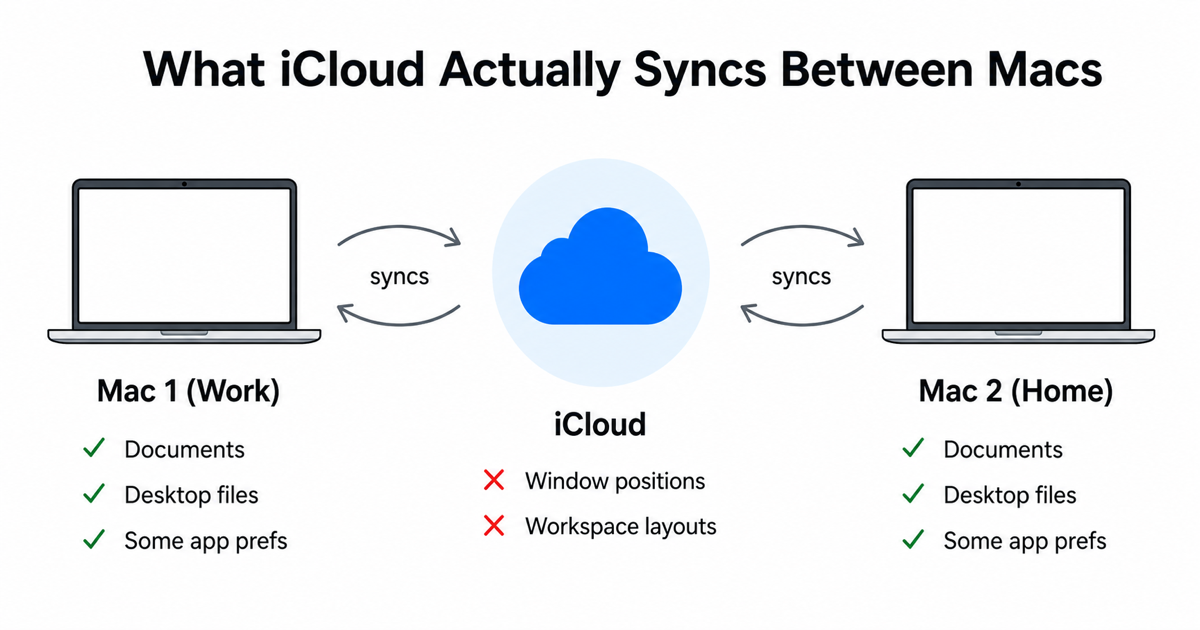
ShiftPlus stores your workspace definitions — the apps, browser profiles, launchers, window layouts, and keyboard shortcuts that belong to each context — in your private iCloud container using Apple's CloudKit. That means a workspace you build on your work Mac exists on your personal Mac without any action on your part.
Define a "Deep Work" hotkey on your MacBook. It's on your Mac Studio by the time you walk across the room. Rename a workspace on your studio on Saturday. It updates on your MacBook before Monday morning.
The sync is always-on and passive: you don't export anything, you don't remember to push changes, and you don't maintain a script. The workspace that was perfect on one machine is simply ready on the other.
If you regularly work across a work MacBook and a personal Mac Studio — or any two-Mac combination — this is the part of your setup that was missing. See how remote workers use multi-Mac sync and how workspace restore works automatically on login for related workflows.
The basics
What is ShiftPlus iCloud Sync?
iCloud Sync keeps your ShiftPlus workspace profiles in sync across all the Macs signed in to the same iCloud account. When you create or edit a workspace on one Mac — its apps, browser profiles, launchers, window layouts, deeplinks, and environment configs — the change is mirrored to your other Macs a few seconds later. It's built on Apple's CloudKit, the same private-database technology Apple uses for its own apps. There's no separate ShiftPlus account, no extra password, and no third-party server in the middle.
How do I sync my workspaces across multiple Macs?
Sign in to the same iCloud account on each Mac, enable iCloud Sync in ShiftPlus on your primary Mac, then open ShiftPlus on your second Mac and turn iCloud Sync on there too. Within a few seconds your existing workspaces appear, ready to launch. After that it's automatic — you never export, import, or copy anything. Edit a workspace on one machine and the others catch up on their own.
Do I need iCloud Sync if I only use one Mac?
No. If you run ShiftPlus on a single Mac, everything is stored locally and works perfectly without sync turned on. iCloud Sync only earns its keep once a second Mac enters the picture — that's the moment it saves you from rebuilding the same workspaces twice.
Setting it up
How do I turn on iCloud Sync?
Open ShiftPlus, go to Settings then iCloud Sync, and toggle it on. ShiftPlus checks that you're signed in to iCloud and that iCloud Drive is available, then does an initial sync of your existing workspaces to the cloud. The first sync can take a few extra seconds while it uploads your library. After that, changes propagate almost instantly.
Pro tip: Turn on iCloud Sync on your main Mac first and let it finish the initial upload before enabling it on a second machine. That way the second Mac pulls a complete library instead of merging two half-built ones.
Does iCloud Sync work offline?
Yes. ShiftPlus works fully offline — sync is an enhancement, not a dependency. When you're offline you keep using and editing your workspaces normally. Any changes you make are queued and pushed to iCloud the next time you're online, then mirrored to your other Macs. Nothing is lost while you're on a plane or off the grid.
Plans and privacy
Which ShiftPlus plan includes iCloud Sync?
iCloud Sync is a paid feature — it isn't part of the free trial's permanent feature set. Both paid licenses include it:
| Plan | iCloud Sync |
|---|---|
| Free Trial (14 days) | Try it during the trial |
| Pro (1 Device) | Included |
| Pro (2 Devices) | Included |
Because syncing is most useful when you actually run ShiftPlus on more than one Mac, the Pro (2 Devices) license is the natural fit if you have, say, an iMac and a MacBook. Both are one-time purchases — there's no subscription and no monthly fee for sync. Early customers keep their original price.
Is iCloud Sync secure and private?
Yes, and it's safe by design. Your workspaces live in your own private iCloud (CloudKit) container, not on a ShiftPlus-operated server. There's no separate account or login to be breached — it rides on the iCloud account you already trust your photos and files to. ShiftPlus doesn't read, sell, or mine what's inside your profiles. In practice your synced data is only as accessible as your Apple ID, protected by your Apple account security and two-factor authentication.
Troubleshooting
My workspaces aren't syncing — how do I fix it?
Run through this checklist. First, confirm both Macs are signed in to the exact same Apple ID (System Settings then your name). Second, make sure iCloud Drive is enabled, since CloudKit needs it (System Settings then Apple ID then iCloud then iCloud Drive). Third, check that iCloud Sync is on in ShiftPlus on both Macs. Then give it a moment — most syncs land in seconds, but a large library or a flaky connection can add a short delay. Watch out for captive-portal Wi-Fi (hotels, cafés) that silently blocks iCloud traffic. If it still won't sync, restart ShiftPlus on the lagging Mac to force a fresh sync pass.
Multi-Mac and cross-device questions
How do I sync my Mac app setup across devices?
The cleanest way to sync a Mac app setup across devices is to use an app that stores its configuration in iCloud natively, rather than on local disk. ShiftPlus does this for workspace definitions — the apps, browser profiles, window layouts, and hotkeys that make up each context. Enable iCloud Sync in ShiftPlus Settings on each Mac signed in to the same Apple ID, and your full setup propagates automatically. No export, no import, no scripts.
Can I use the same workspaces on my work and personal Mac?
Yes — as long as both Macs are signed in to the same Apple ID and have iCloud Sync enabled in ShiftPlus. A workspace you build on your work MacBook (with work apps, work browser profiles, work hotkeys) appears on your personal Mac Studio within seconds. You can keep the workspace definitions identical across both machines and simply launch whichever apps are installed on each. Apps that don't exist on the second Mac are skipped on launch without error, so a mixed-software setup works cleanly.
Does ShiftPlus sync use my iCloud storage?
Yes, but negligibly. Workspace definitions are small structured records — not files, screenshots, or binaries. A full library of 10–20 workspaces with apps, browser profiles, and layouts typically occupies well under a megabyte of CloudKit storage. iCloud Drive must be enabled for CloudKit to function, but ShiftPlus sync won't meaningfully affect your iCloud storage quota.
What happens if I edit a workspace on both Macs at once?
ShiftPlus uses Apple's CloudKit private database, which handles concurrent edits using last-write-wins semantics at the record level. In practice: if you're offline on both Macs and edit different workspaces, both sets of changes are queued and applied cleanly when each Mac reconnects — there's no conflict because they touched different records. If you edit the same workspace on both Macs while offline, the version that reaches iCloud last takes precedence; the earlier save is overwritten. ShiftPlus doesn't show a merge dialog or conflict notification — CloudKit resolves it silently. This edge case is uncommon in normal use, since most people actively work on one machine at a time, but it's worth knowing if you frequently work offline on both machines simultaneously.
The bigger picture: one workspace, every Mac
The point of ShiftPlus is to make context switching a single click instead of a five-minute ritual of dragging windows and logging into browser profiles. iCloud Sync extends that idea across hardware: the "Deep Work" or "Client A" workspace you perfected on one machine is simply there on the next one.
Set it up once. Use it everywhere.
Ready to sync your setup across all your Macs? Download ShiftPlus and try it free — then turn on iCloud Sync in Settings.