Mac Apps Keep Opening on the Wrong Desktop? Here's How to Pin Them to a Space
You assigned an app to a desktop and macOS still opens it somewhere else, usually after a restart or when you plug in a monitor. Here's what actually breaks Space assignments, and what to do about it.
You right-click Slack in the Dock, pick Options → Assign To → This Desktop, and it behaves for a few days. Then you restart, or you undock the MacBook, and Slack is sitting on Desktop 1 with everything else. Sometimes the assignment is still checked in the Dock menu. macOS just ignored it.
This is where most advice stops being useful, because "assign it to a desktop" is the answer to a different question than the one you're asking. There are four separate behaviors that all end with your app on the wrong screen, and they need different fixes.
Start by checking the assignment is where you think it is
The menu is easy to mis-click, so rule this out first.
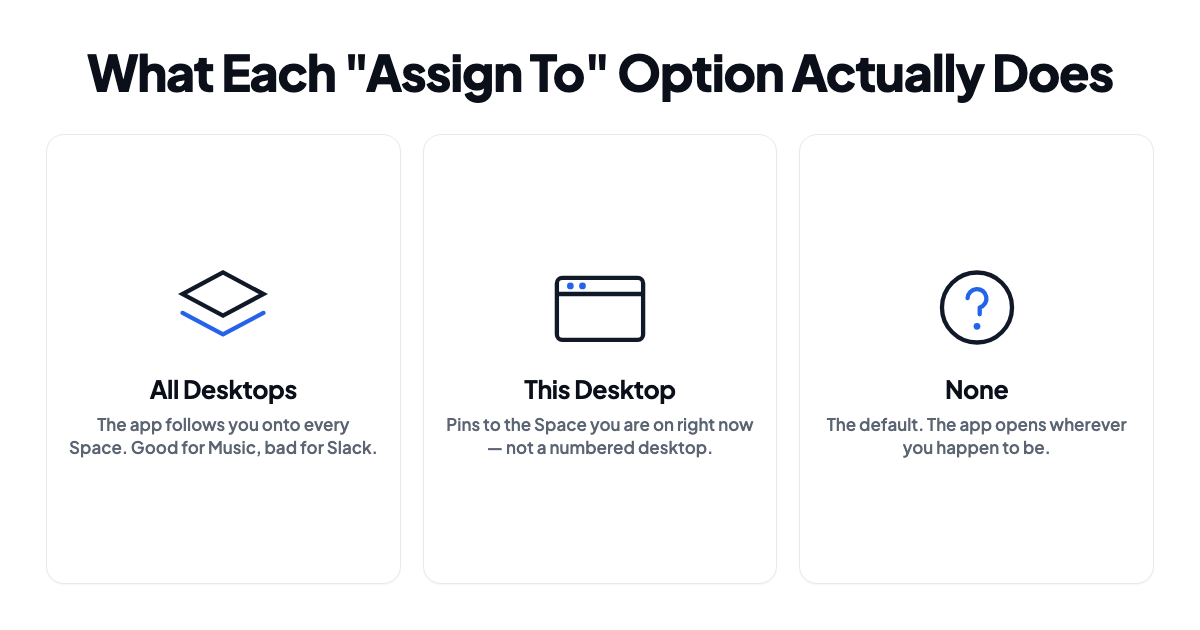
Right-click the app's Dock icon, hover Options, and look under Assign To:
- All Desktops puts the app on every Space.
- This Desktop pins it to whichever Space you're on at that moment.
- None is the default. The app opens wherever you happen to be.
The trap is This Desktop. It doesn't record "Desktop 3." It records the Space you were standing on when you clicked. Set it while you're on Desktop 1 and that's where the app lives, whatever you intended.
To correct it, switch to the desktop you actually want, then set Assign To → This Desktop again.
Stop macOS from renumbering your desktops
By default macOS reorders Spaces by how recently you used them. Desktop 3 quietly becomes Desktop 2, and every habit you've built about which desktop is which stops matching what's on screen.
Go to System Settings → Desktop & Dock, scroll to Mission Control, and turn off Automatically rearrange Spaces based on most recent use.
If you change one setting on this page, make it this one. It won't stop assignments from being dropped, but it stops the floor moving under you. There's more on that particular annoyance in why macOS keeps rearranging your Spaces.
Know what "Displays have separate Spaces" is doing to you
Same section of settings, different toggle.
Turned on, each display gets its own independent set of Spaces, and a full-screen app takes over one screen while the other stays usable. Turned off, Spaces span every display at once, so switching desktops switches both screens together.
Flipping this requires a logout, and it invalidates a lot of existing assignments, because apps pinned under one model don't map cleanly onto the other. If your setup broke right after you touched this toggle, that's your answer.
Neither setting is correct in the abstract. Pick the one that matches how you work and then leave it alone. Going back and forth is a reliable way to keep losing assignments.
Apps with several windows need a different approach
Dock assignment works on the application, not on individual windows. Fine for Slack or Mail. Useless for a browser with a window per client, an editor with a window per repo, or Finder, which opens windows wherever it feels like.
Pin the app and every window follows, including the one you wanted on the second monitor. There is no built-in way to say "this window on Desktop 2, that one on Desktop 3." macOS doesn't model windows that way at all.
The practical answer is to leave multi-window apps on None, place their windows by hand, and accept you'll do it again after the next restart.
Why the assignment vanishes
Four things are going on, and it helps to know which one is biting you.
Spaces don't have stable identities. They're tracked internally, not by the number you see. Logging out, some macOS updates, and connecting a display while Displays have separate Spaces is on can all cause Spaces to be recreated. An assignment pointing at a Space that no longer exists just quietly does nothing.
Changing displays rebuilds the layout. Docking and undocking is the usual trigger. When the set of displays changes, macOS re-places windows onto whatever screens are left, and there's no guarantee the Space layout comes back in the same shape. Same root cause as windows rearranging when you unplug a monitor.
Login restore isn't layout restore. Reopen windows when logging back in relaunches apps. Whether they land on the right Space, at the right size, on the right display is a separate problem that macOS doesn't really attempt.
Apps race each other at startup. They launch in whatever order they finish loading. An app that opens before its Space has been created lands somewhere else and stays put.
Where the built-in approach runs out
Dock assignment answers one question: where does this app live? Permanently, for all its windows, on a Space that might not survive the week.
Most people are asking something else. How do I get these six apps, on these three desktops, across two monitors, back the way I had them?
That's a different kind of state, not a harder version of the same one. It belongs to a project rather than to an app, it includes window geometry and which display things sit on, and it has to be rebuildable on command instead of passively remembered. macOS has no concept for any of that, which is why no combination of the settings above gets you there.
One display, a steady set of apps? Stop reading. Dock assignment plus turning off automatic rearranging is genuinely enough, and reaching for another tool would be overkill.
Docking and undocking, or switching between projects? You're doing manual reconstruction every week, and it's worth fixing properly.
Rebuilding the arrangement instead of remembering it
That's the gap ShiftPlus fills. Arrange your apps and windows once, capture the setup as a named workspace, and it records which Space each app belongs on, which display each window sits on, and how each one is sized. Hitting the workspace hotkey rebuilds that arrangement, moving apps onto the right desktop rather than hoping macOS kept track.
Because the state lives in a workspace rather than a per-app setting, a restart or a display change doesn't destroy it. You restore, and you're back. Workspaces have names, so you can have a different desktop layout per project instead of one global answer per app.
Needs macOS 14.6 or later, plus Accessibility permission to move windows. Same permission any window manager asks for.
FAQ
Why does "Assign To → This Desktop" keep resetting itself?
Usually it isn't resetting. The Space it pointed at was recreated, which happens after logging out, after some macOS updates, and after display changes when Displays have separate Spaces is on. Re-assigning works until the next one.
Can I assign an app to a specific numbered desktop, like "always Desktop 3"?
No. Your only options are All Desktops, This Desktop, and None. "This Desktop" binds to whatever Space you're on, and the numbering itself can shift, especially with automatic rearranging turned on.
Do full-screen apps count as a Space?
Yes, every full-screen window creates one. That's why your desktop count changes as you full-screen things, and why the numbering drifts.
Does Stage Manager change any of this?
Stage Manager is a separate window model sitting on top of Spaces, with its own trouble remembering arrangements. Assignments still apply, but the two interact inconsistently enough that most people end up running one or the other.
Will assignments survive a restart?
Sometimes. Login Items usually relaunch, but whether each app lands on its assigned Space depends on launch order and whether the Spaces got rebuilt. It's the least reliable case, and the one people complain about most.