Mac Windows Rearrange When You Unplug a Monitor? Here's the Fix (2026)
macOS scrambles your windows every time you dock or undock. Here's why it happens and how to restore your exact multi-monitor layout in one hotkey.
You're working docked with your external monitor — code on the big screen, Slack on the side, browser open right where you need it. You pack up your laptop, unplug the display, and watch macOS collapse every window onto your 13-inch screen in a pile. When you get back to your desk and plug in again, nothing goes back to where it was. You rebuild from scratch.
This happens every time. It's one of the most consistently frustrating Mac behaviors for anyone who alternates between a docked desk setup and a laptop-only setup. Here's why it happens, what Apple actually gives you, and the tools that actually fix it.
TL;DR
TL;DR — macOS has no native memory for per-monitor window positions. When you unplug an external display, your windows get dumped onto your laptop screen — and don't return when you reconnect. Rectangle and Magnet can tile your windows but save nothing. Stay auto-repositions windows when you plug a monitor back in. ShiftPlus captures your full workspace — which apps are open, their positions, which Spaces they're on, which browser profiles are loaded — and restores everything in one hotkey press, across dock/undock cycles.
Why macOS rearranges your windows when you unplug a monitor
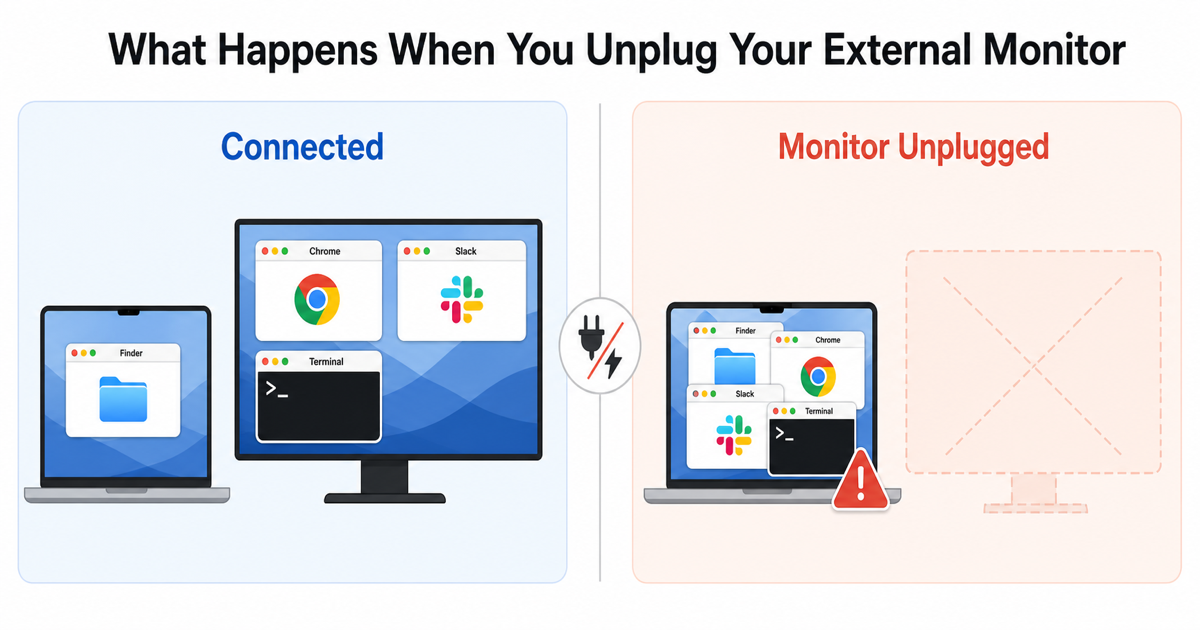
The core issue is that macOS tracks window positions in real-time memory, not in persistent storage. Every window has a live position on whatever screen it's currently on. When the display that window is sitting on disappears — because you unplugged it — macOS has nowhere to keep those positions. The window objects get reassigned to whichever screen is still available, almost always your laptop's built-in display.
There is no mechanism in macOS that says "save where these windows are before the display disappears, then restore them when it comes back." The operating system doesn't consider that a use case worth handling.
When you reconnect the external monitor, macOS sees a freshly available screen. It doesn't look for any saved state associated with that display. Your windows are all on the laptop screen, and they stay there until you move them manually.
A few related behaviors compound the problem:
Spaces tied to the external display get dissolved. If you had Spaces set up on your external monitor — different virtual desktops for different app groups — those Spaces collapse when the monitor disconnects. Apps that were on those Spaces have to land somewhere, and they land on your remaining screen in a pile.
Resolution mismatches make it worse. If your external monitor is a 4K display and your laptop screen is smaller, windows that were sized and positioned for the big screen may end up partially off-screen or awkwardly clipped. Finding and recovering those windows adds to the rebuild time.
The display arrangement setting in System Settings is a cursor-wrapping preference, not window memory. You can set "external monitor to the left of the laptop screen" and macOS will remember that relationship when both are connected. But this is a static geometry setting — it has nothing to do with where individual app windows sit.
This is a structural gap in the operating system, not something you can configure your way around. For more context on why macOS loses window positions in general, see why macOS doesn't remember window positions.
What Apple gives you natively — and where it falls short
System Settings > Displays gives you three useful things: display arrangement (which side monitors are relative to each other), primary display selection, and resolution/refresh rate settings. None of these affect where app windows are positioned. They describe the screen geometry, not what apps do within it.
Stage Manager is Apple's closest attempt at layout persistence. It groups windows into sets you can switch between, and it remembers positions within those groups during a live session. If you switch away from a Stage Manager group and come back, the windows are where you left them. For within-session context switching, Stage Manager is genuinely useful.
Where Stage Manager falls apart for the monitor-disconnect problem:
- When you unplug an external display mid-session, Stage Manager groups that were on that display get disrupted. The groupings don't survive the display change cleanly.
- Stage Manager is a live-session organizer, not a restore mechanism. It has no concept of "rebuild this environment from scratch after a disconnection."
- It doesn't persist across restarts or reboots, so its usefulness is limited to an uninterrupted session.
"Reopen windows when logging back in" — the checkbox in the shutdown dialog — is a restart-recovery feature only. It doesn't apply to monitor connect/disconnect events during a live session.
The honest summary: as of 2026, macOS has no native feature that detects when an external monitor connects and restores your window layout to match a previously saved state. Third-party tools exist specifically because Apple hasn't built this.
Comparison: the main tools for this problem
| Tool | Remembers layout per display setup | Restores across Spaces | Restores apps + browser profiles | Price |
|---|---|---|---|---|
| Manual rearranging | ✗ | ✗ | ✗ | Free |
| Rectangle / Magnet (snapping) | ✗ | ✗ | ✗ | Free / $9.99 |
| Moom (snapshot) | Partial | ✗ | ✗ | Paid |
| Stay | ✅ | ✗ | ✗ | Paid |
| ShiftPlus | ✅ | ✅ | ✅ | $24–$39 one-time |
Rectangle and Magnet are window tiling tools. They snap windows to halves, thirds, quarters, and corners with keyboard shortcuts. They're excellent at rapid repositioning during a session. But they save nothing. There's no "remember where my windows are and restore them on reconnect" feature — that's not what these tools do. If you reach for Rectangle after plugging in your monitor, you're doing the tiling manually, same as always.
Moom adds named snapshots on top of window tiling. You can capture your current window arrangement under a name and restore it later. For the dock/undock use case, the workflow is: reconnect the monitor, then manually trigger your saved Moom snapshot to reposition everything. This works, with caveats. Moom saves pixel-exact positions, so if your external monitor and laptop have different resolutions or DPI settings, positions may not translate cleanly — windows can end up in slightly wrong places or off-screen. Moom also requires the right apps to already be running; it repositions existing windows but won't launch anything.
Stay is the most direct solution to the "reconnect monitor and windows auto-return" use case. It monitors your connected display configuration and automatically moves windows back to their saved positions when a known display is reconnected. No manual trigger needed — plug in the monitor, and Stay handles the repositioning. The limits: Stay works with currently-running apps only, doesn't manage Spaces, doesn't restore app content (browser tabs, project files), and doesn't launch apps that aren't open.
ShiftPlus is a different model: you capture your full working environment as a named workspace and restore it on demand. It goes beyond position-restore into full state restore — which apps are open, what they're showing, which Spaces they're on, which browser profiles are loaded. More on this below.
For a broader look at layout-saving options, see how to save and restore window layouts on macOS.
Fixing it with ShiftPlus: step-by-step
ShiftPlus treats the monitor-disconnect problem as a workspace problem: your desk setup is a named configuration you can capture once and restore instantly whenever things get disrupted.
1. Get your desk setup exactly right
Plug in your external monitor and arrange everything how you want it — apps on the right Spaces, windows in their positions, browser profiles loaded, terminal in the right directory. This is the environment you want to be able to return to.
2. Capture with ⌘⇧C
Press ⌘⇧C or click the ShiftPlus menu bar icon → Capture current setup. Name it something clear — "Desk Setup" or "Work Docked."
ShiftPlus captures:
- Which apps are open, and with what project paths, files, or URLs
- Which browser profile is active and which URLs are loaded per profile
- Window positions as logical placements — Left Half, Right Half, Fullscreen, specific thirds — rather than pixel coordinates
- Which Space (virtual desktop) each app is assigned to
3. Configure per-app preferred display and Space
In the workspace editor, each app entry can be assigned a preferred display ("built-in display" or "external display") and a Space number. When you restore, ShiftPlus places each app on the right screen and Space according to these assignments.
This logical approach is what makes it work across different display configurations: "external monitor, right half, Space 2" is an instruction that adapts to whatever external monitor you're connected to — resolution, size, and position all adjust automatically.
4. Restore with one hotkey after any disruption
Next time your layout gets shuffled — after unplugging your monitor, after returning to your desk, after a Zoom call took over your screen — press the workspace hotkey. ShiftPlus:
- Launches any apps that aren't running
- Focuses apps that are already open
- Opens the right projects, files, and browser URLs in the right profiles
- Snaps every window to its configured display, Space, and logical position
The restore takes a few seconds. You don't move anything manually.
For more on how workspace restore works generally, see the best macOS workspace managers compared in 2026.
FAQ
Why do my Mac windows move when I disconnect my monitor?
When you disconnect an external display, macOS discards the live window positions for that screen and moves those windows to whichever display remains connected — typically your laptop's built-in screen. macOS has no persistent memory for where windows were on a given monitor. When you reconnect the display, it appears as a fresh screen to the system; your windows are all already on the laptop screen and stay there until you manually move them back.
Does macOS have a built-in way to remember window positions per monitor?
No. System Settings > Displays manages display arrangement, primary display, and resolution — but not where individual app windows sit. Stage Manager preserves window groupings within a live session but doesn't survive disconnecting a monitor or restarting your Mac. There is no macOS feature that saves window positions per connected monitor and restores them when that monitor reconnects.
Can Rectangle or Magnet restore my window layout?
No. Rectangle (free, open-source) and Magnet are window tiling tools — they let you snap windows to halves, thirds, and corners using keyboard shortcuts. They're excellent for quick manual positioning but save no layout state. There's nothing to restore because nothing was saved. For automatic restore on monitor reconnect, Stay handles that passively. For full workspace restore including apps, browser profiles, and Spaces, ShiftPlus is the tool.
How does ShiftPlus restore windows across multiple monitors?
ShiftPlus stores each app entry in a workspace with a preferred display (built-in or external) and a logical window arrangement (Left Half, Right Half, Fullscreen, etc.). When you restore a workspace, ShiftPlus places each app according to these logical instructions rather than pixel-exact coordinates. This means the same workspace adapts to your current display configuration: working laptop-only, everything fits the built-in screen; working docked, apps land on the right external monitor in the right positions. Reconnect, press the hotkey, everything is back.
Stop rebuilding your layout after every dock/undock
The monitor disconnect problem is one of those Mac annoyances that compounds daily. A few minutes of rebuilding per dock/undock cycle adds up across a week of work — especially if you're disciplined about a specific layout for focus.
The fix depends on what you actually need:
- Just want windows to snap back automatically when you reconnect? Stay handles that passively with no manual trigger.
- Need your full environment — apps, projects, Spaces, browser profiles — restored in one keypress? That's what ShiftPlus is built for.
Neither tool is overkill for what it does. Pick based on what "restore my layout" means to you.
Done rebuilding your layout after every monitor swap? Download ShiftPlus and try it free for 14 days — capture your desk setup once, restore it with one hotkey.