How to Open All Your Apps at Once on Mac (4 Methods That Work)
Four methods to open all your apps at once on Mac with a single action — from built-in Shortcuts and Automator to a shell one-liner and a workspace manager that also restores windows, Spaces, and browser profiles.
Every developer, freelancer, and remote worker has a morning ritual: open Slack, VS Code, Chrome, Figma, iTerm — then drag windows to their positions across monitors and Spaces. The same five to ten minutes, every day, before you've actually started working.
macOS does not have a built-in "launch my work setup" button. But there are four real approaches that get close — and one that goes further by also restoring window positions, virtual desktops, and the correct browser profile. This guide covers all four, with honest tradeoffs for each.
TL;DR
Apple Shortcuts chains multiple "Open App" actions into one shortcut at zero cost — quick to set up, but it cannot restore window positions or select a browser profile. Automator builds a double-clickable
.appor a login item with similar limits. Aopen -ashell script is the terminal-native path and composes well with launchers like Raycast. ShiftPlus captures your entire workspace once with ⌘⇧C — apps, windows, Spaces, and browser profiles — and restores the whole thing with one hotkey (⌘;) or a Raycast command; the only option that does the complete job.
Method 1: Apple Shortcuts
The Shortcuts app (built into macOS Monterey 12 and later) is the lowest-friction approach for most users. No third-party software, no scripting knowledge required.
Steps
- Open Shortcuts — search for it in Spotlight with
⌘Space. - Click the + button in the top toolbar to create a new shortcut.
- In the actions search panel on the right, type Open App and double-click the action to add it to the workflow.
- Click Choose inside the action card and pick the first app you want to open.
- Click the + icon below that action (or search the panel again) and add another Open App action — repeat for each app in your set.
- Name the shortcut at the top of the window (e.g., "Work Setup" or "Design Mode").
Triggering the shortcut:
- Menu bar: Right-click the shortcut in the Shortcuts sidebar and choose Add to Menu Bar. A new icon appears in your menu bar; click it to run.
- Dock: Right-click the shortcut and choose Add to Dock — treat it like an app launcher.
- Keyboard shortcut: Open System Settings → Keyboard → Keyboard Shortcuts → App Shortcuts, click +, choose the Shortcuts app, enter the exact name you gave the shortcut (case-sensitive), and assign a key combination. macOS routes that key press to the shortcut automatically.
Honest limits
- Apps open in whatever window state macOS last saved — no control over window size, position, or monitor placement.
- You cannot specify which browser profile opens; Chrome will open whichever profile was last active.
- The actions run in sequence, so you may see apps pop into focus one at a time rather than appearing simultaneously.
- There is no mechanism to assign each set to a macOS Space (virtual desktop).
Method 2: Automator application or login item
Automator predates Shortcuts and does the same job with a different output format: a standalone .app file. This is useful when you want a double-clickable icon, a Dock entry, or — most practically — a login item that runs your app set automatically every time you log in.
Steps
- Open Automator from
/Applications/or via Spotlight. - Choose New Document, then select Application as the document type.
- In the left actions panel, search for Launch Application and drag it into the workflow canvas on the right.
- Use the dropdown inside the action to select the first app you want to open.
- Drag additional Launch Application actions onto the canvas — one per app. They run top-to-bottom.
- Save (
⌘S), give the file a name likeWork Setup.app, and choose a location you'll remember.
Running at login: Open System Settings → General → Login Items & Extensions. Under "Open at Login", click + and add your saved Automator app. It will launch automatically on every login, firing all the included apps.
Adding to Dock: Drag the .app file directly into your Dock as you would any app.
Honest limits
- Same window-position and browser-profile limitations as Shortcuts.
- Apple has not actively developed Automator since Shortcuts arrived — it works, but error messages and edge cases are less polished.
- If you move or rename the
.appfile, any Dock pin or Login Items reference breaks and needs to be re-added manually.
Method 3: Shell one-liner with open -a
For users comfortable in the terminal, open -a is macOS's built-in command to activate an application by name. Chaining several calls gives you a multi-app launcher in one line.
open -a "Slack" && open -a "Visual Studio Code" && open -a "Google Chrome" && open -a "iTerm"
open -a activates the named app — it opens it if closed, or brings its existing window to the front if it is already running. The && operator runs each call only after the previous one succeeds; substitute ; if you want all calls to fire regardless.
Making it permanent. Add an alias or shell function to your .zshrc or .bashrc:
alias workday='open -a "Slack" && open -a "Visual Studio Code" && open -a "Google Chrome"'
After source ~/.zshrc, running workday in any terminal window launches your set.
Browser profile targeting. For Chrome or Brave, you can pass the internal profile directory to open a specific profile:
open -na "Google Chrome" --args --profile-directory="Profile 1"
Find your profile's directory name at chrome://version → Profile Path (the last segment, such as Default, Profile 1, Profile 2). If the profile is already open, Chrome focuses the existing window.
Launching from Raycast. Wrap the one-liner in a Raycast Script Command so you can trigger your work setup by typing its name in the command palette — no terminal window required.
Skip the typing. The Mac Launch Script Generator builds this script for you — pick your apps and Chrome profiles, copy one block into Terminal, and it writes an executable .sh file to your home directory. Free, no signup.
Honest limits
- Still no window-layout restoration and no Spaces assignment.
- The Chrome
--profile-directoryflag opens a window but cannot guarantee focus ordering when multiple profiles are involved. - Shell aliases only work inside a terminal session; you need an additional launcher (Raycast, Alfred, a
.commandfile) to trigger them from the keyboard globally.
Method 4: ShiftPlus — capture once, restore everything
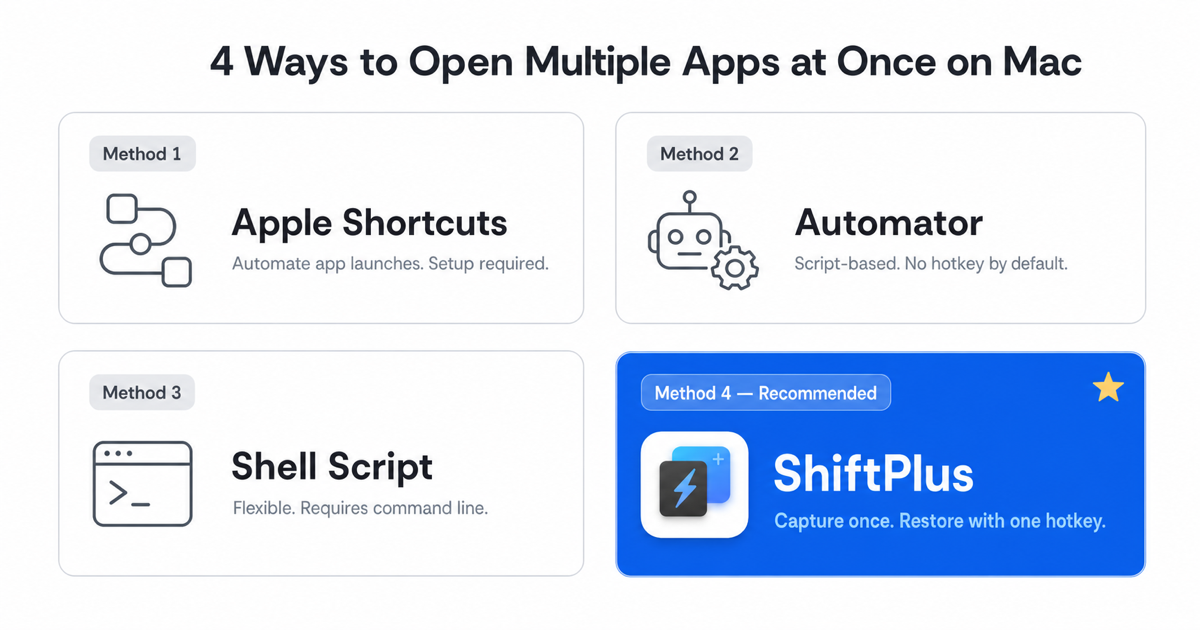
The three methods above answer "how do I open my apps" but not "how do I restore my setup." Window positions vanish between sessions. macOS Spaces are ignored. The wrong Chrome profile appears. You still spend several minutes rearranging after launch.
ShiftPlus is a native SwiftUI macOS workspace manager that captures the complete picture and restores it on demand.
Capture your workspace
Arrange all your apps exactly the way you want them — windows at the right sizes and positions, on the right monitors, on the right Spaces, with the right Chrome or Arc profile open. Then press ⌘⇧C (Capture Setup).
ShiftPlus records:
- Which apps are open and which Space (virtual desktop) each window is on.
- Each window's size, position, and monitor assignment (up to 11 saved arrangements per app).
- Which browser profile is active — supporting Chrome, Brave, Arc, Edge, Safari, Firefox, Vivaldi, Opera, DuckDuckGo, and Orion.
- Per-workspace terminal environment variables and AWS profile bindings (Pro).
- Quick Links — a list of URLs or app deep-links for that project context.
Restore with one hotkey
Press ⌘; (Quick Switch) to open the workspace switcher overlay and select the workspace you want. Or assign a per-workspace hotkey like ⌃⌥1 in ShiftPlus settings and activate that specific workspace directly, without an overlay.
The Raycast integration adds three commands to the Raycast command palette — Switch Workspace, Open Quick Link, and Activate Last Workspace — so you can switch your entire context without leaving the keyboard.
For the full detail on what gets restored after a restart or new login session, see How to Restore Your macOS Workspace Automatically. For a deeper look at the window-layout mechanics, see How to Save and Restore Window Layouts on Mac. If you work across multiple Macs, How to Sync Your Mac Setup Across Devices covers the iCloud Sync feature that keeps workspace configurations in step on all your machines.
Comparison table
| Free | Launches apps | Restores window layout | Opens correct browser profile | Per-project sets | |
|---|---|---|---|---|---|
| Apple Shortcuts | ✅ | ✅ | ❌ | ❌ | ✅ (one shortcut per set) |
| Automator | ✅ | ✅ | ❌ | ❌ | ✅ (one app per set) |
open -a script |
✅ | ✅ | ❌ | ⚠️ Manually with --profile-directory |
✅ (one alias per set) |
| ShiftPlus | ✅ (14-day trial) | ✅ | ✅ | ✅ | ✅ |
FAQ
Can Apple Shortcuts open several apps with one click?
Yes. In the Shortcuts app, create a new shortcut and add one "Open App" action per app you want to launch. You can run it from the menu bar, Dock, or a keyboard shortcut assigned in System Settings → Keyboard → Keyboard Shortcuts → App Shortcuts. The core limitation is that Shortcuts has no control over window positions or browser profile selection — it opens apps in whatever state macOS last saved them.
How do I open a group of apps automatically at login on Mac?
The most reliable approach is an Automator application: build a workflow with Launch Application actions for each app, save it as an .app file, then add it to System Settings → General → Login Items & Extensions under "Open at Login." It will fire automatically on every login. Alternatively, ShiftPlus workspaces can be restored at login as well, with the added benefit of window layout and browser profile restoration.
Can I open different apps for work and personal projects?
Yes — every method supports multiple independent sets. With Shortcuts, create one shortcut per context ("Work Setup," "Personal," "Client A"). With Automator, save a separate .app per project. With shell aliases, define one alias per set in .zshrc. With ShiftPlus, each named workspace is a completely independent set — its own apps, window layout, browser profile, and quick links — and you switch between them with ⌘; or a per-workspace hotkey.
Does ShiftPlus also restore window positions when it launches apps?
Yes. When you capture a workspace with ⌘⇧C, ShiftPlus records each window's size, position, and display. On restore, it repositions every window to match the snapshot, including across multiple monitors and macOS Spaces (virtual desktops). This is the key difference from Shortcuts and Automator: those tools launch your apps but leave window arrangement entirely to macOS, which places windows wherever it last left them.